
The Image Color Extractor automatically pulls colors from any uploaded picture. Use this tool to build a new palette from a reference image and save it directly to your workspace.
This tool picks the six dominant colors for you. If you want a specific color from a specific spot, use the Image Color Picker instead, which samples the exact pixels you click.
-
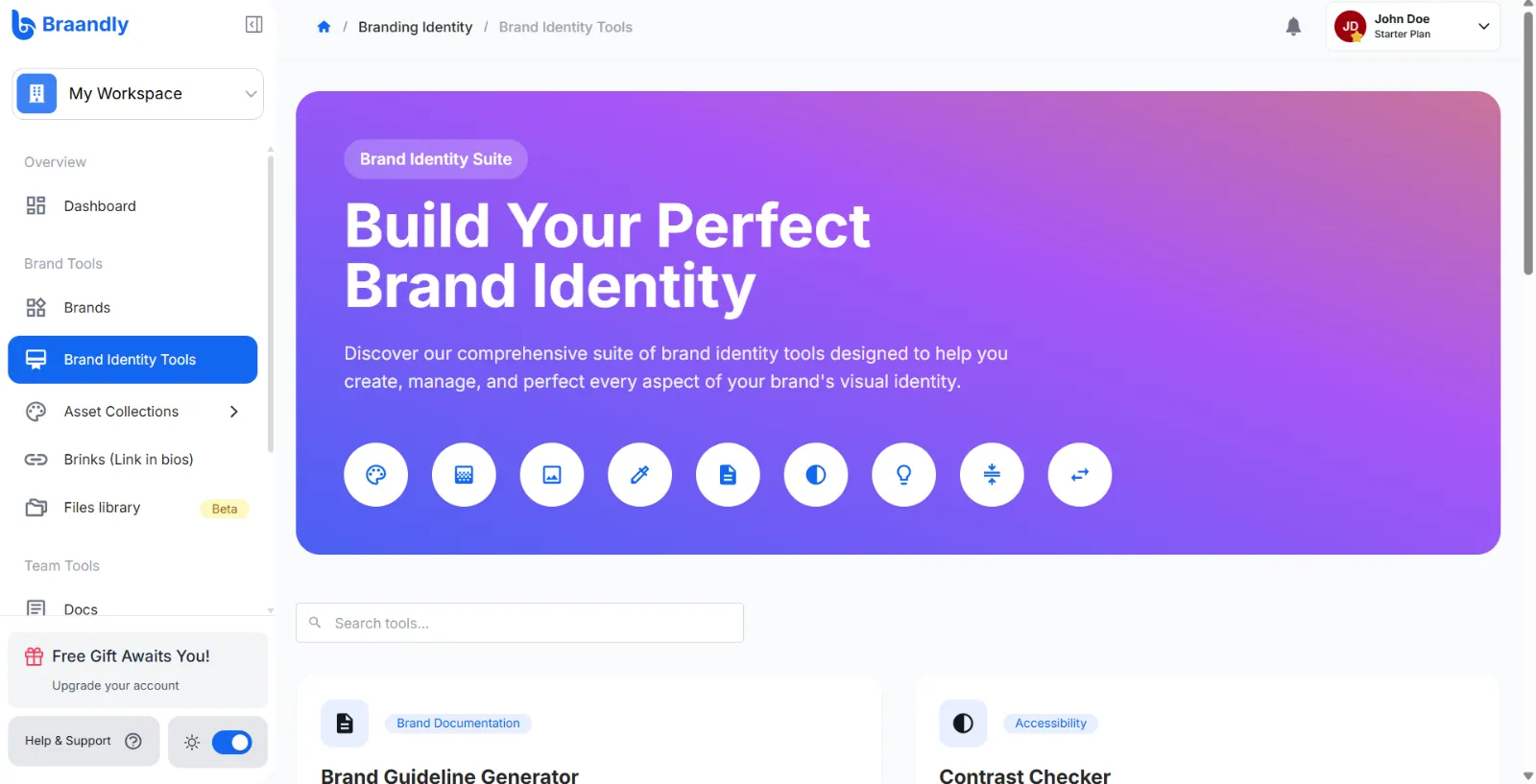
Open your dashboard and go to Brand Identity Tools.
-
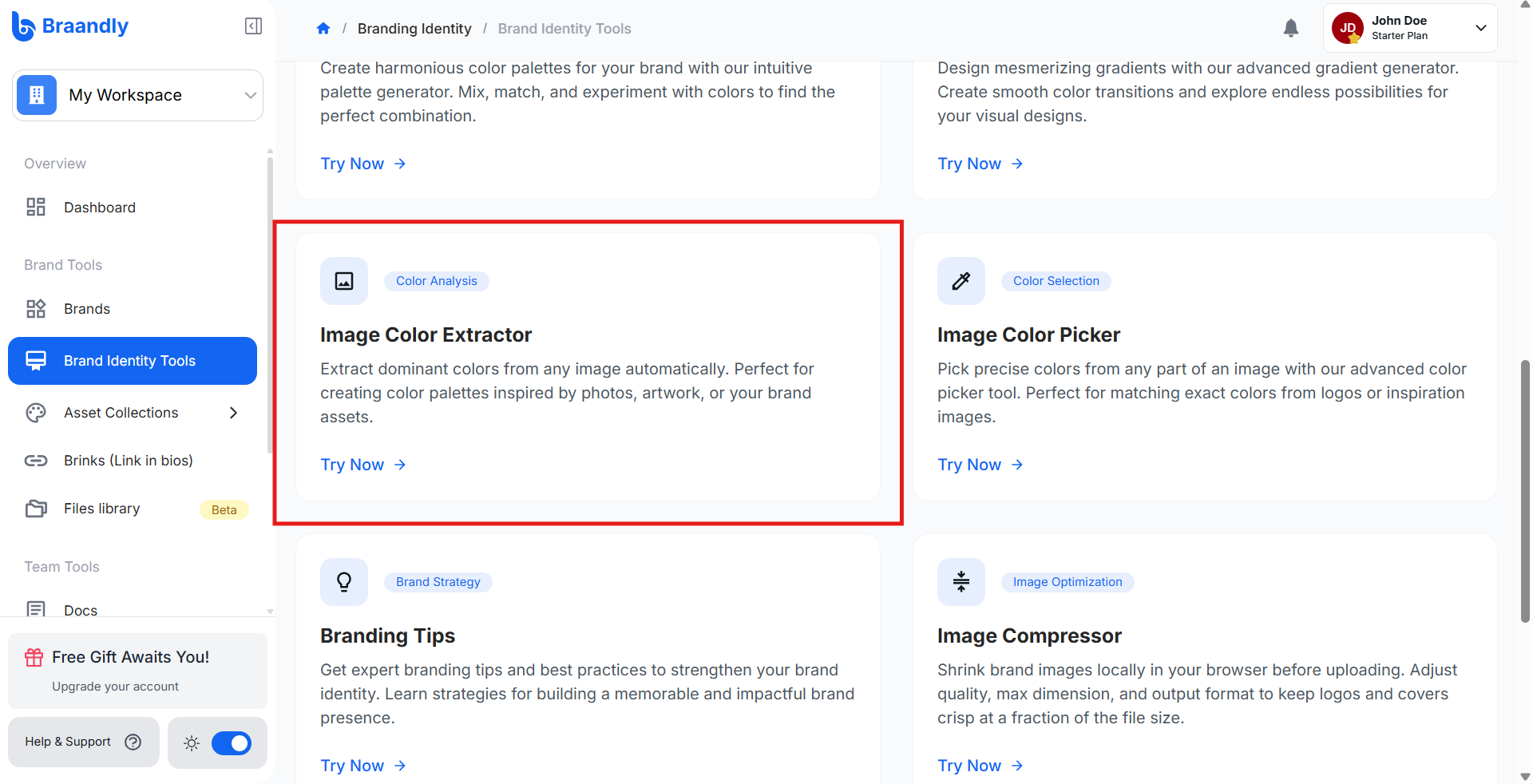
Click Image Color Extractor.
-
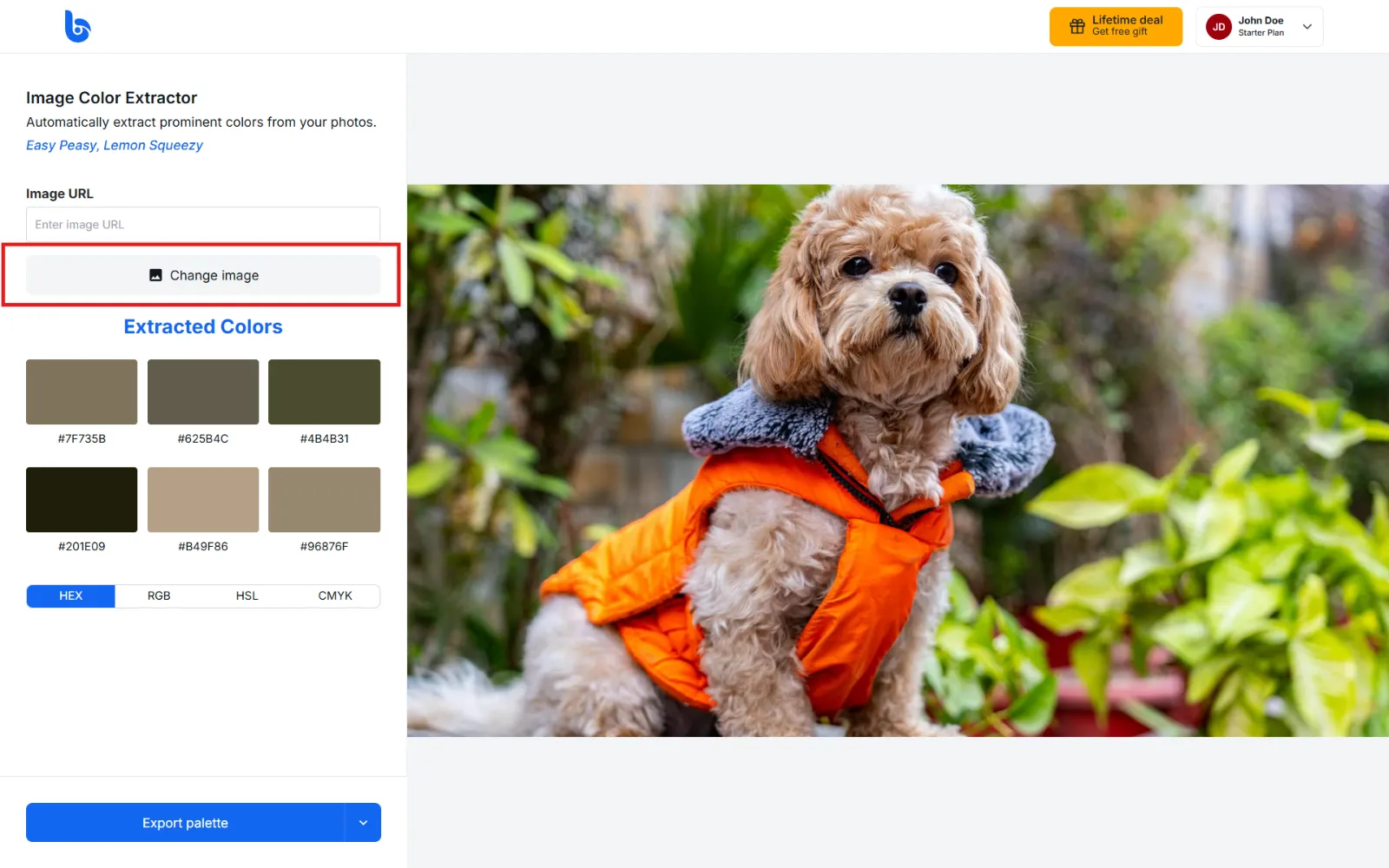
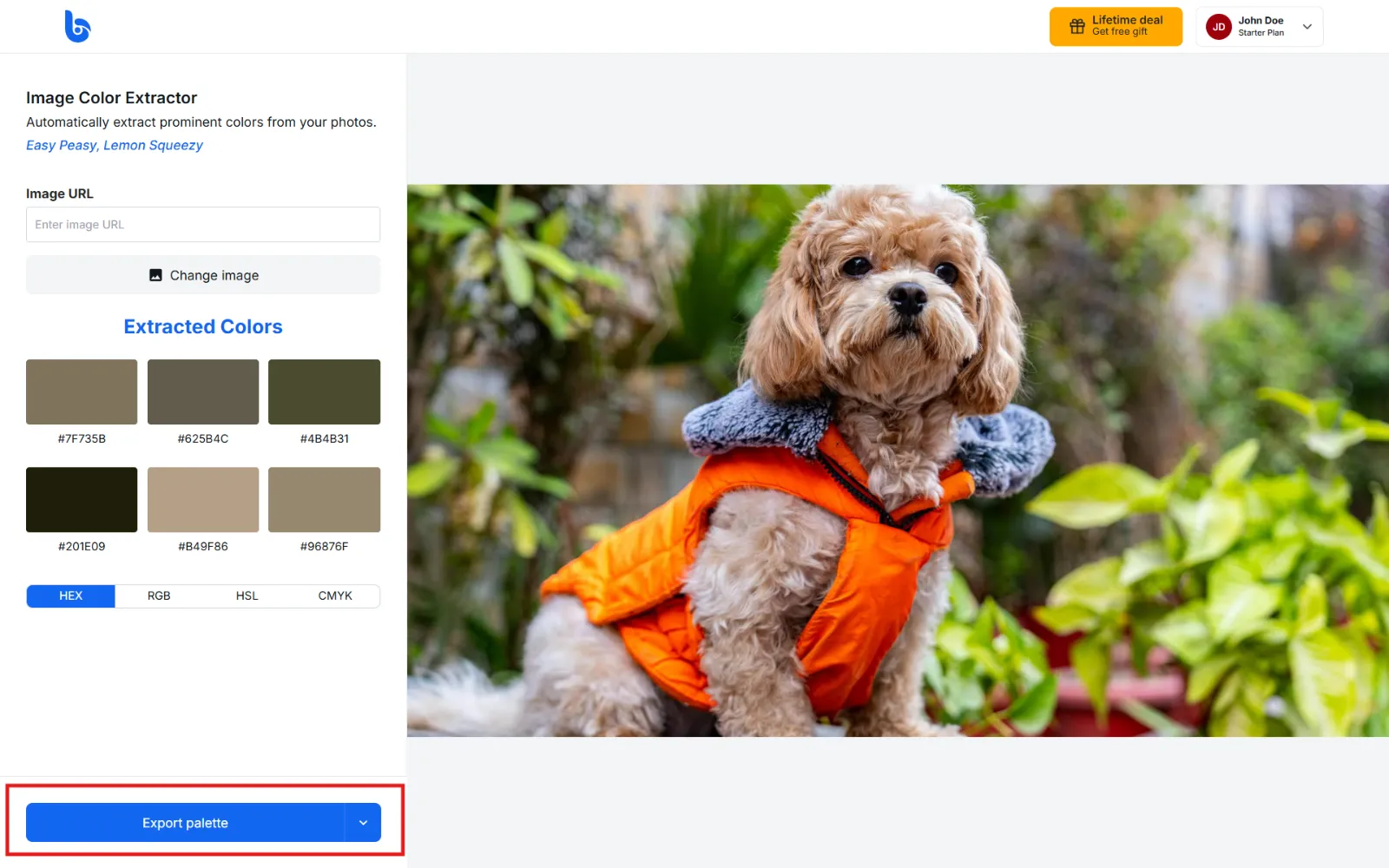
Click Change image to upload a file from your computer, or paste a link into the Image URL field. The tool processes the image and displays the extracted color palette.
-
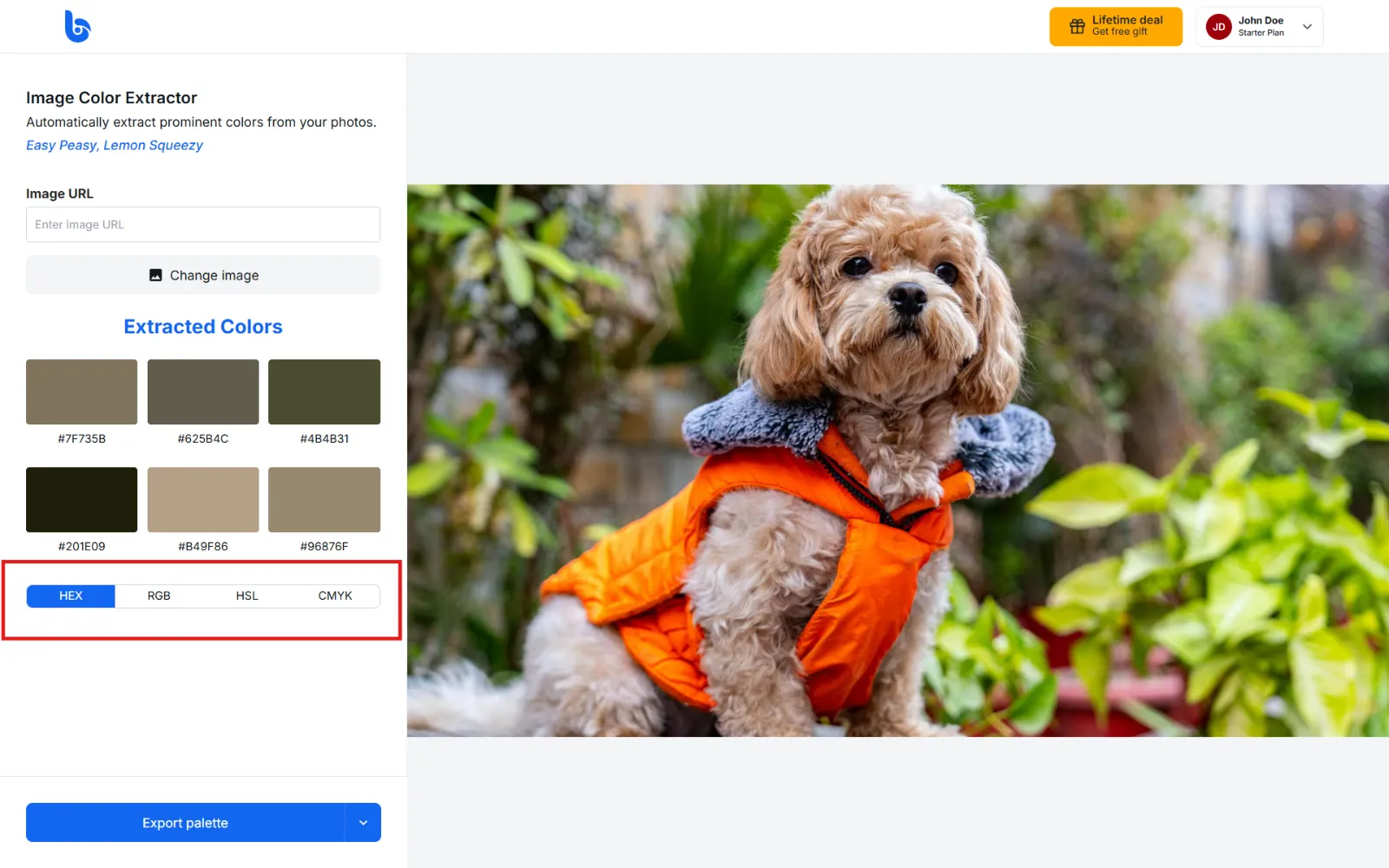
View your extracted colors in your preferred format by clicking HEX, RGB, HSL, or CMYK. Click any swatch to copy its value in the format you have selected.
The tool opens with a sample image already loaded, so you will see a palette before you upload anything. It always returns six colors, and that number is fixed.
Uploads are limited to 10 MB. Images loaded by URL must be PNG, JPEG, GIF, WebP, BMP, or AVIF and under 15 MB, so SVG and HEIC files will not load that way. For iPhone photos, see Convert HEIC photos.
Export and share your palette
When your palette is ready, you can save it to your device, share it online, or save it directly to your workspace.
-
Click Export palette.
-
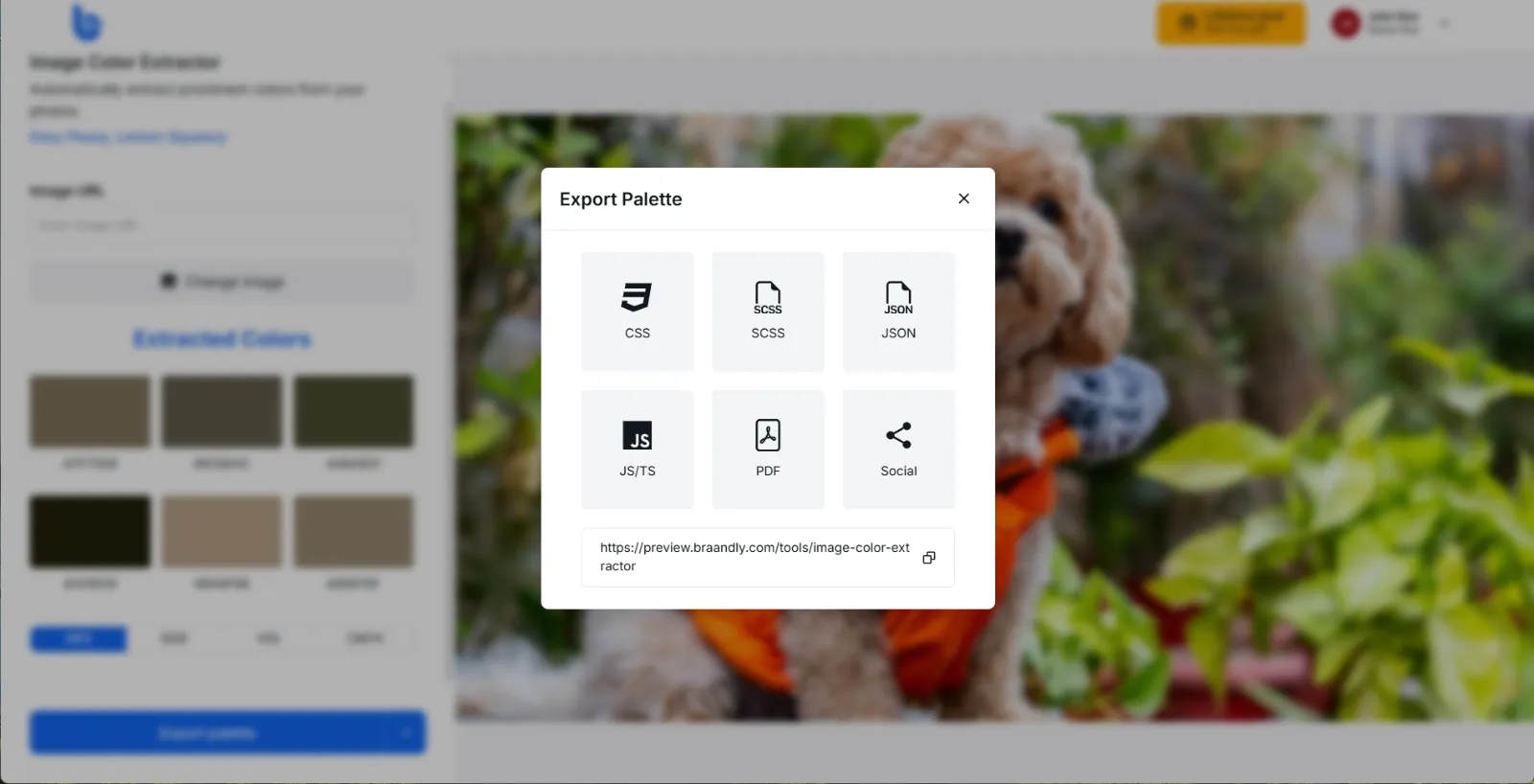
Choose your preferred format. CSS, SCSS, JSON, and JS/TS give you developer-ready variables, PDF produces a document version, and Social shares the palette to social media. The JS/TS option has separate JavaScript and TypeScript tabs inside it.
-
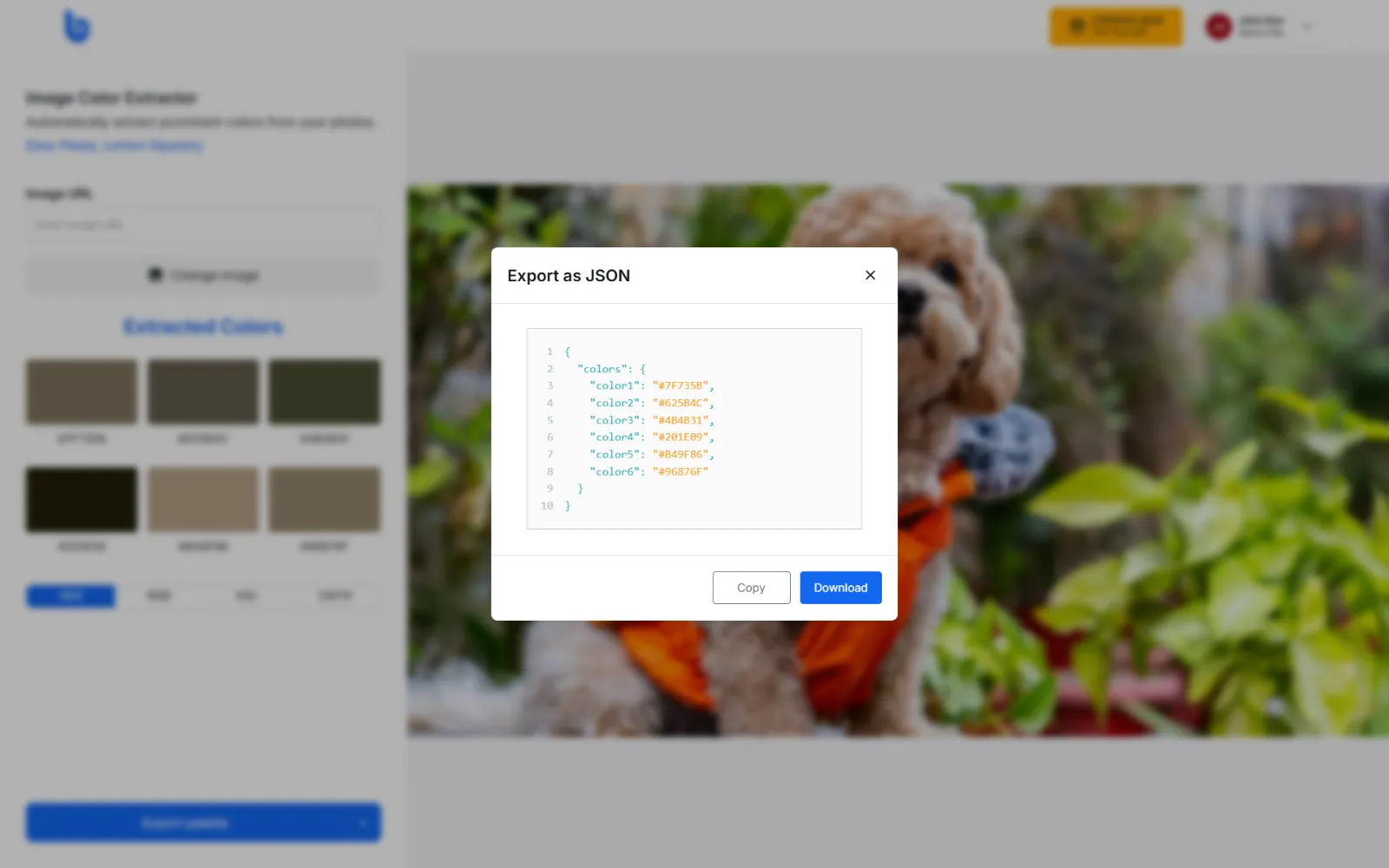
Click Download to save the file to your computer, or Copy to put the code straight on your clipboard.
-
Alternatively, you can click the dropdown icon beside the Export Palette button and choose how you want to use your new palette.
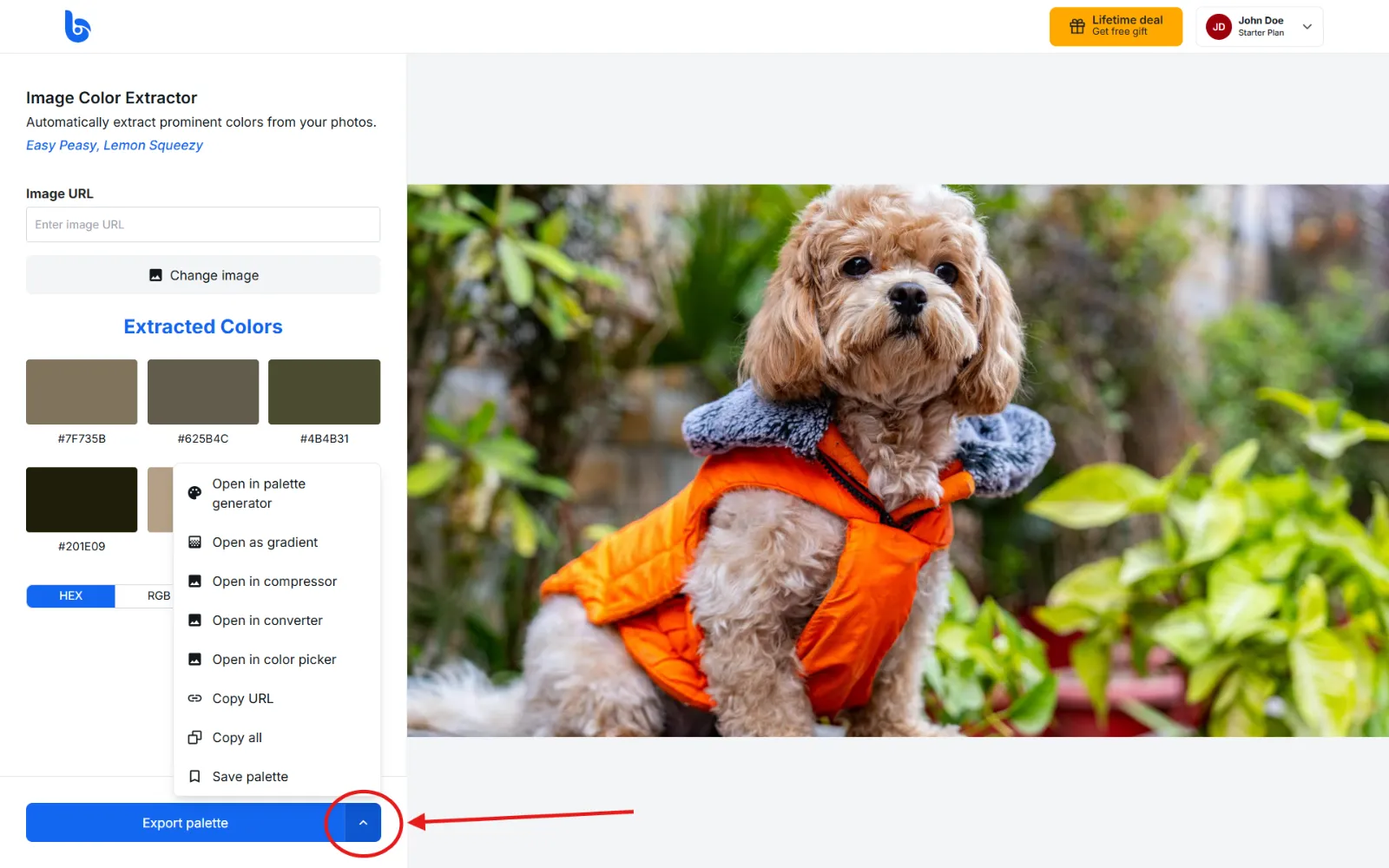
- Click Open in palette generator, Open as gradient, Open in compressor, Open in converter, or Open in color picker to pass it to another Braandly tool.
- Click Copy all or Copy URL to grab the values to share with your team.
- Click Save palette to store it in your workspace.
The PDF and Social options behave a little differently from the code formats. PDF has its own filename field and a Download PDF button, and Social offers sharing links rather than a download.
Saving a palette to your workspace
Save palette keeps the palette in Braandly rather than exporting a file. A few things to know:
- You need to be signed in, and the palette saves to the workspace you currently have open.
- Saved palettes count towards your plan's limit. See Plan limits explained.
- Save palette works as a toggle. Clicking it again on a saved palette removes it from the workspace.
Troubleshooting
Why won't my image load? Check the file size against the limits above. If you pasted a link, it has to point directly at an image file in a supported format.
Why did my upload do nothing at all? Files over 10 MB are rejected. Try a smaller version of the image.
Can I get more than six colors? Not from this tool. Use the Image Color Picker to build a palette of up to 10 colors by clicking the image.
Why was I asked to log in? Saving a palette to a workspace requires an account. Exporting does not.
Next steps
Once you save your palette, you can apply these colors to your Brand Guidelines or use them in your Projects.