
The built-in Image Converter lets you switch file formats without leaving your workspace. It converts to JPEG, PNG, WebP, BMP, and ICO, and it runs in your browser rather than uploading your file anywhere.
Before you start
What you can convert: PNG, JPEG, WebP, GIF, BMP, SVG, HEIC, HEIF, PDF, and JFIF files, up to 10 per batch. See Supported file formats.
Convert an image
-
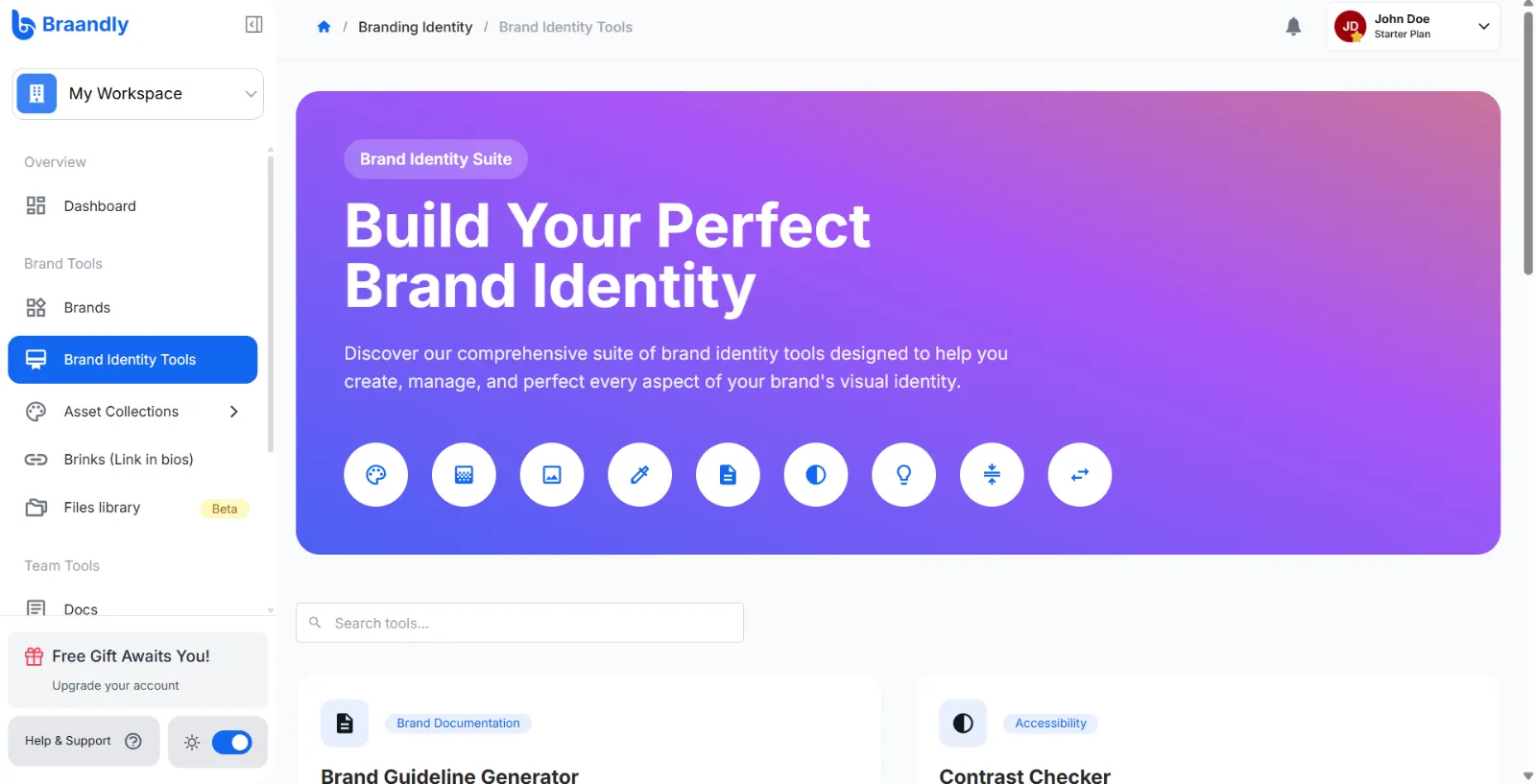
Open your dashboard and click Brand Identity Tools.
-
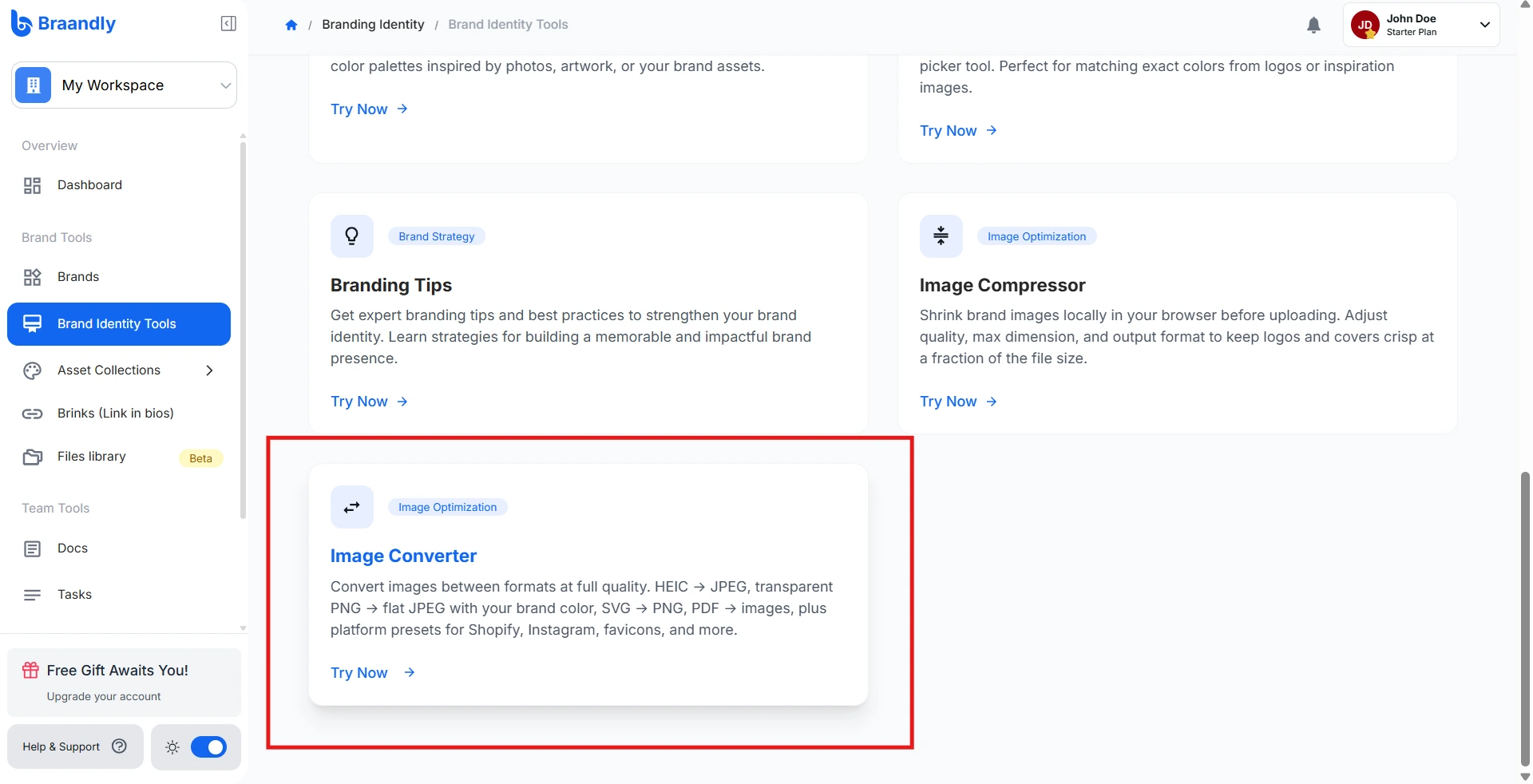
Select Image Converter.
-
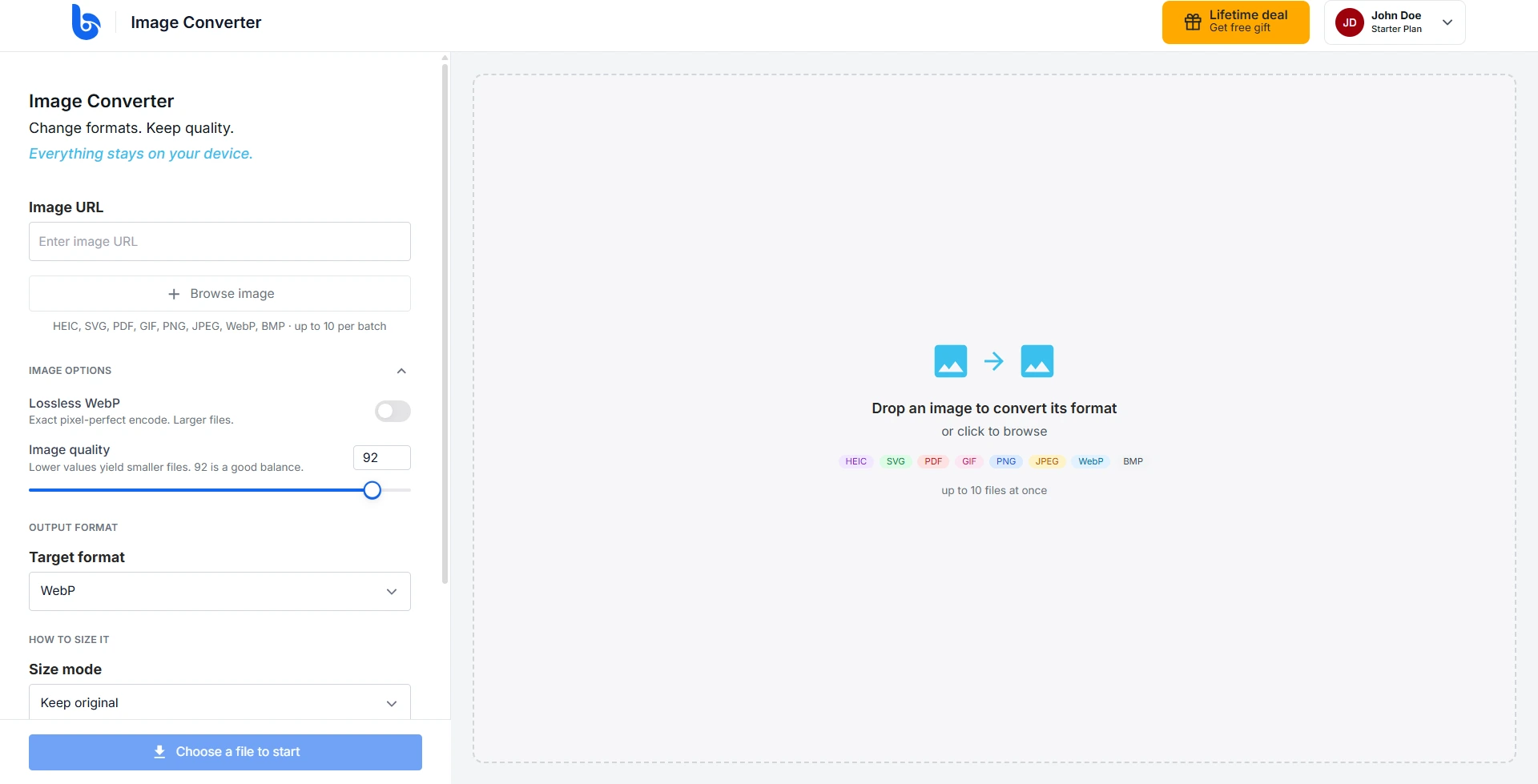
Add the image you want to convert. Click Browse image, drag a file onto the page, paste one from your clipboard, or enter a link in the Image URL field.
-
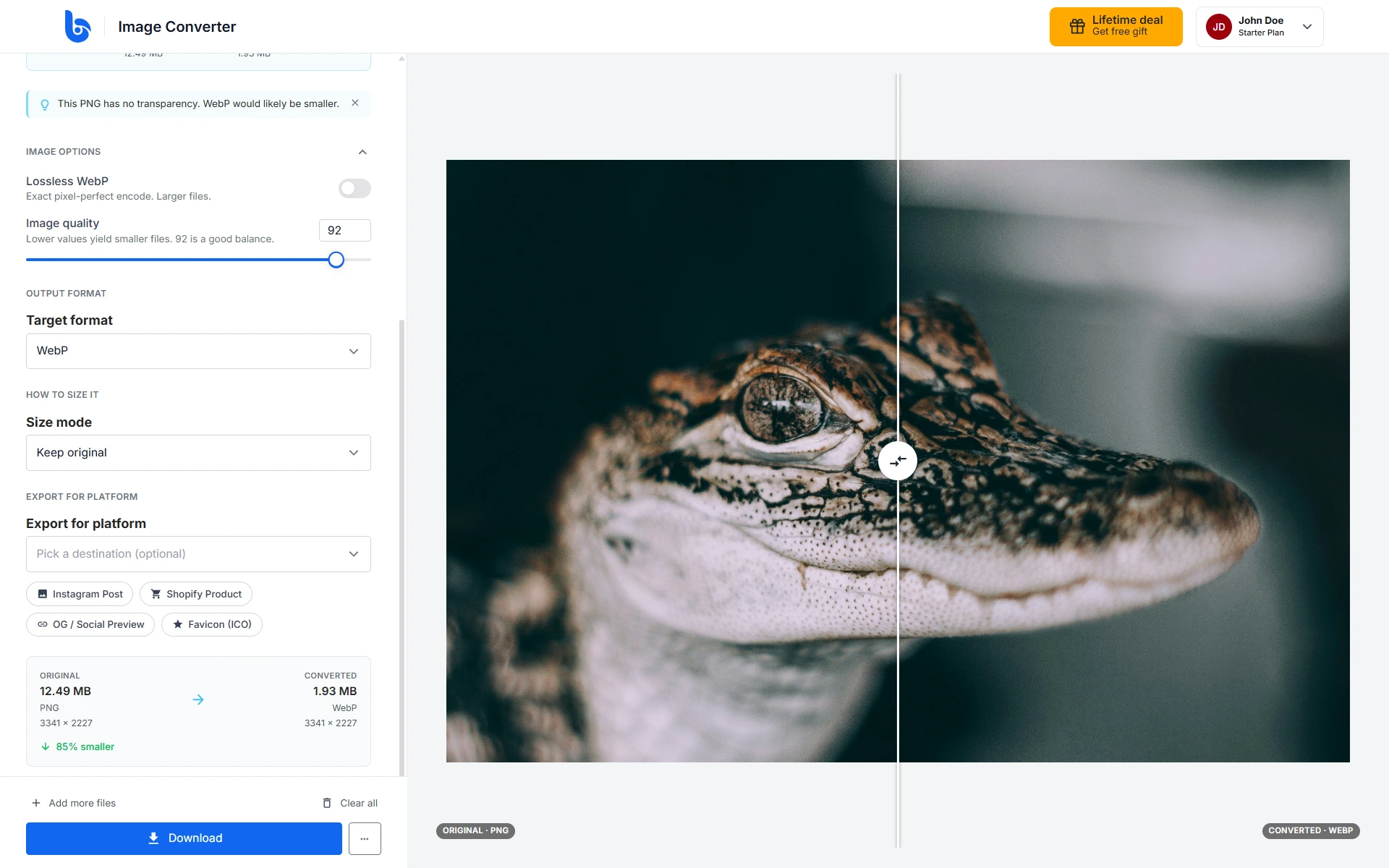
Select your target format and adjust any settings you need.
-
Click Download to save the file to your computer.
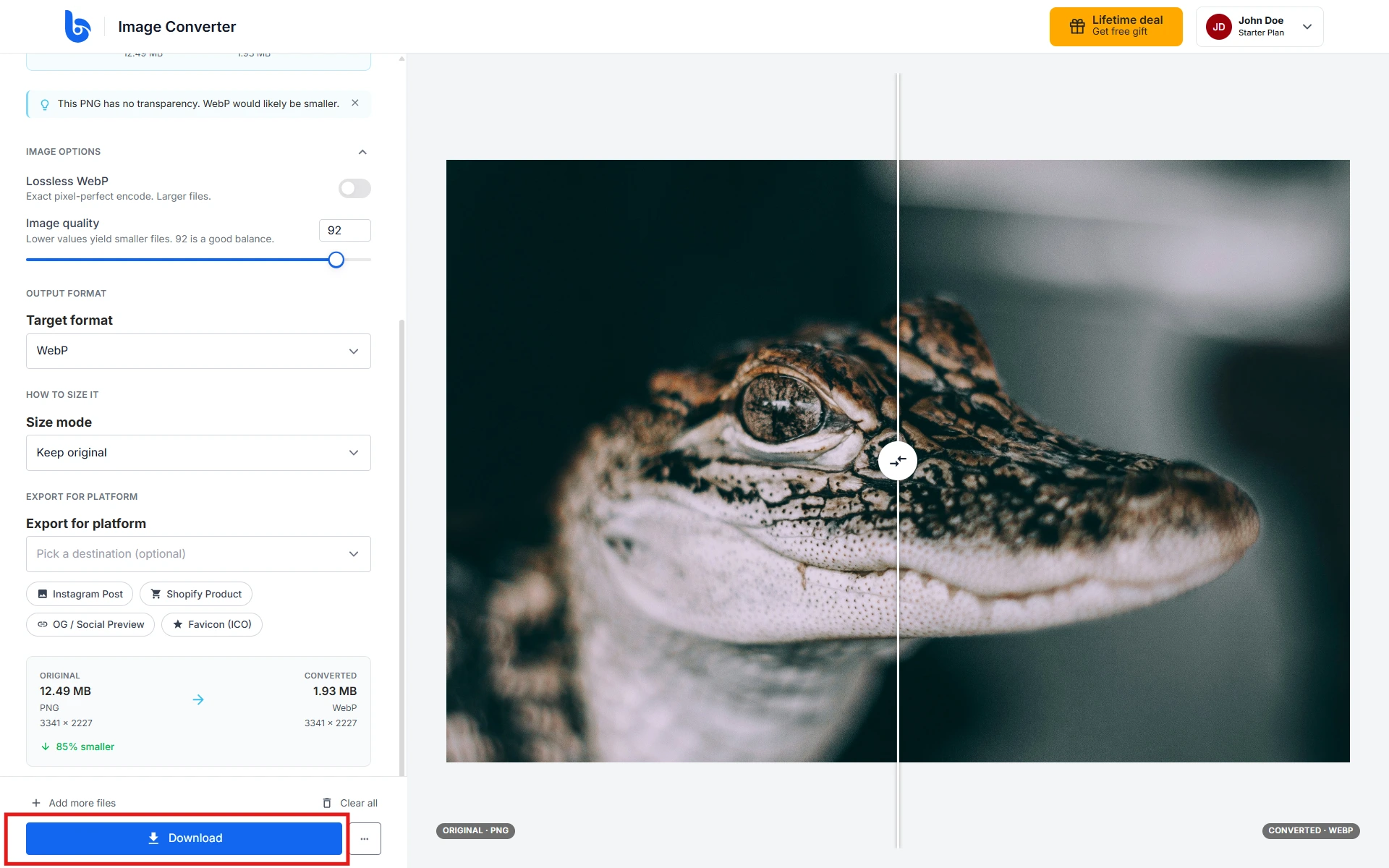
There is no convert button. Your file converts as soon as it loads, and converts again automatically each time you change a setting. The preview shows the current result, and Download saves whatever is showing.
The download button changes with what you have loaded. With one file it reads Download. Once several files have converted it becomes Download all (n) as ZIP, and a separate Selected button saves just the one you are viewing.
Settings you can change
Open Image Options to adjust the output:
| Setting | What it does |
|---|---|
| Image quality | Compression level for JPEG and WebP output. |
| Lossless WebP | Keeps full quality when converting to WebP. |
| Strip EXIF metadata | Removes camera and location data. JPEG only. |
| Background color | Fills transparency when converting to a format that cannot store it, such as JPEG or BMP. You can pick from your brand palette. |
| ICO sizes | Which sizes to include when converting to ICO. |
How to size it controls dimensions, with options to keep the original, cap the largest side, or set a custom width and height.
For PDFs, you also get PDF render DPI and a Pages option for converting the first page, all pages, or a page range.
Export for platform applies a preset sized for a specific destination, including favicons and social profiles. Filename template appears once you have a batch, and accepts tokens like {name} and {n}.
On a phone or narrow window, these controls are behind the Conversion settings button.
Additional options
Once your image is loaded, you can skip the download and send it somewhere else instead.
-
Click the three-dot (...) icon to choose how you want to save or use your converted image.
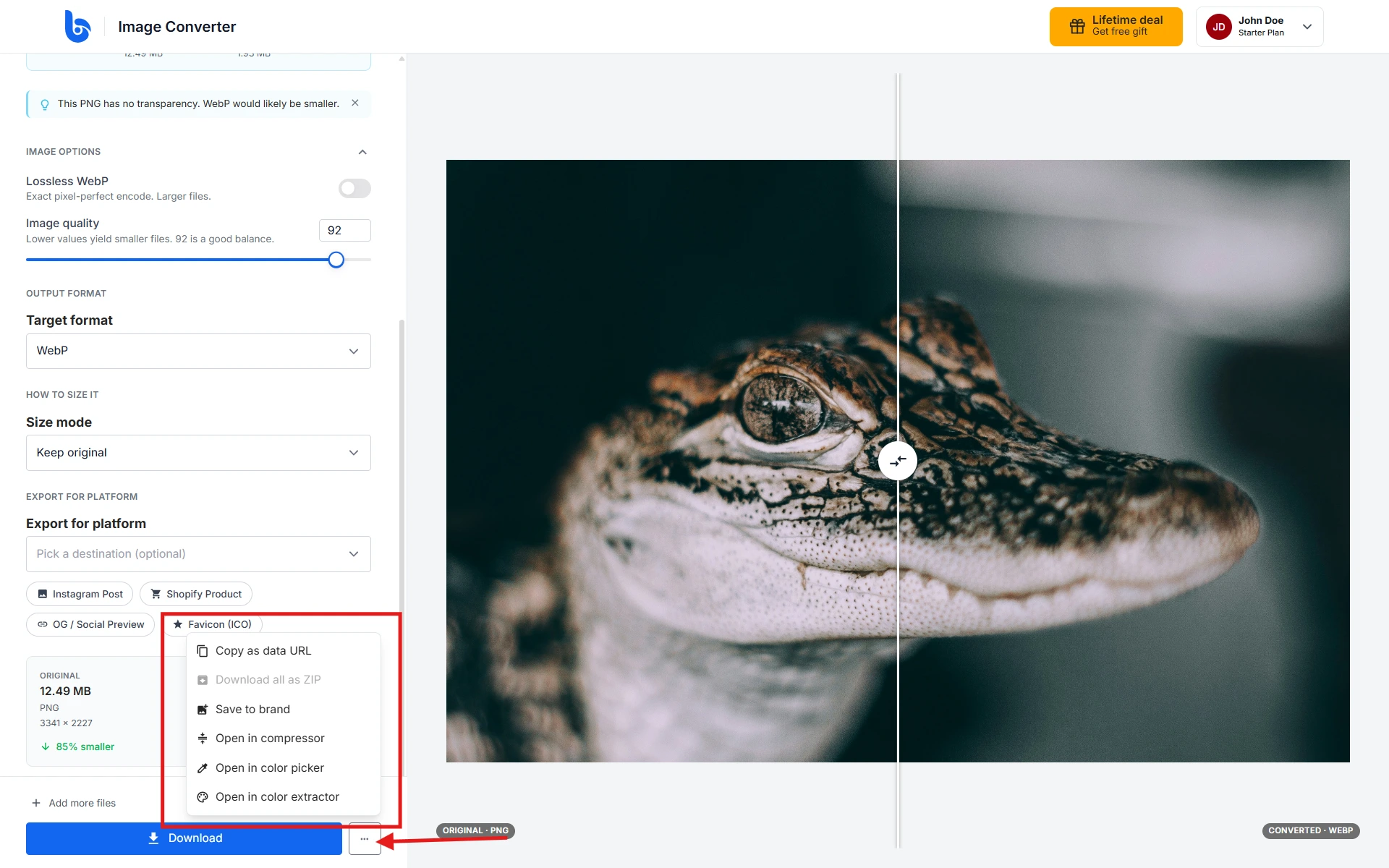
- Click Save to brand to store the image in your workspace as a brand asset.
- Click Download all as ZIP to save a whole batch at once.
- Click Copy as data URL to put the image on your clipboard as a data URL.
- Click Open in compressor, Open in color picker, or Open in color extractor to pass the image to another Braandly tool.
Saving to a brand
Save to brand opens a dialog rather than saving straight away. Pick the Brand and the Asset slot (Logo, Icon, Symbol, or Cover), then confirm with Add to brand. You need to be signed in. Everything else in the converter works without an account.
Two things commonly block this. Brand assets must be under 2 MB, and an .ico file can only go in the Icon slot. The other slots reject it as an unsupported type.
Things to know
- PDFs convert a maximum of 20 pages in one run.
- Animated GIFs convert the first frame only.
- SVGs that reference external files will skip those references.
- HEIC and HEIF photos are decoded in your browser. Very large ones can time out. See Convert HEIC photos.
What you'll see
A slider lets you drag between the original and converted versions to compare them. If a file fails, a panel replaces the preview with the reason and a Try again button. Unsupported files added in a batch are skipped with a message telling you how many.
Troubleshooting
Why is my Download button asking for a ZIP? More than one file has converted. Use the Selected button to save just the one you are looking at.
Why was my file rejected when saving to a brand? It is either over 2 MB, or it is an .ico going into a slot other than Icon.
Why does my JPEG have a coloured background? JPEG cannot store transparency, so the converter fills it. Change this under Background color.
Why did only part of my PDF convert? PDFs are capped at 20 pages per run. Convert the rest in a second pass using the page range.
Next steps
To make a file smaller rather than change its type, see Compress images. To build a favicon, see Create a favicon.