
This guide shows you how to update your brand identity, like your logo, colors, and font, inside your workspace.
Before you start
A few things affect whether you can edit a brand at all:
- Your role. Members, managers, admins, and the workspace owner can edit brands. Guests have read-only access and will see a message instead of the edit page. See Workspace roles and permissions.
- Archived brands cannot be edited. The Update brand button still appears, but saving fails with "Cannot update archived brand". Unarchive the brand first from its overview page.
- A logo and at least one brand color are required. You can remove other assets, but the form will not save without these two.
- Each file must be under 2 MB. See Supported file formats for accepted types.
Update your identity
-
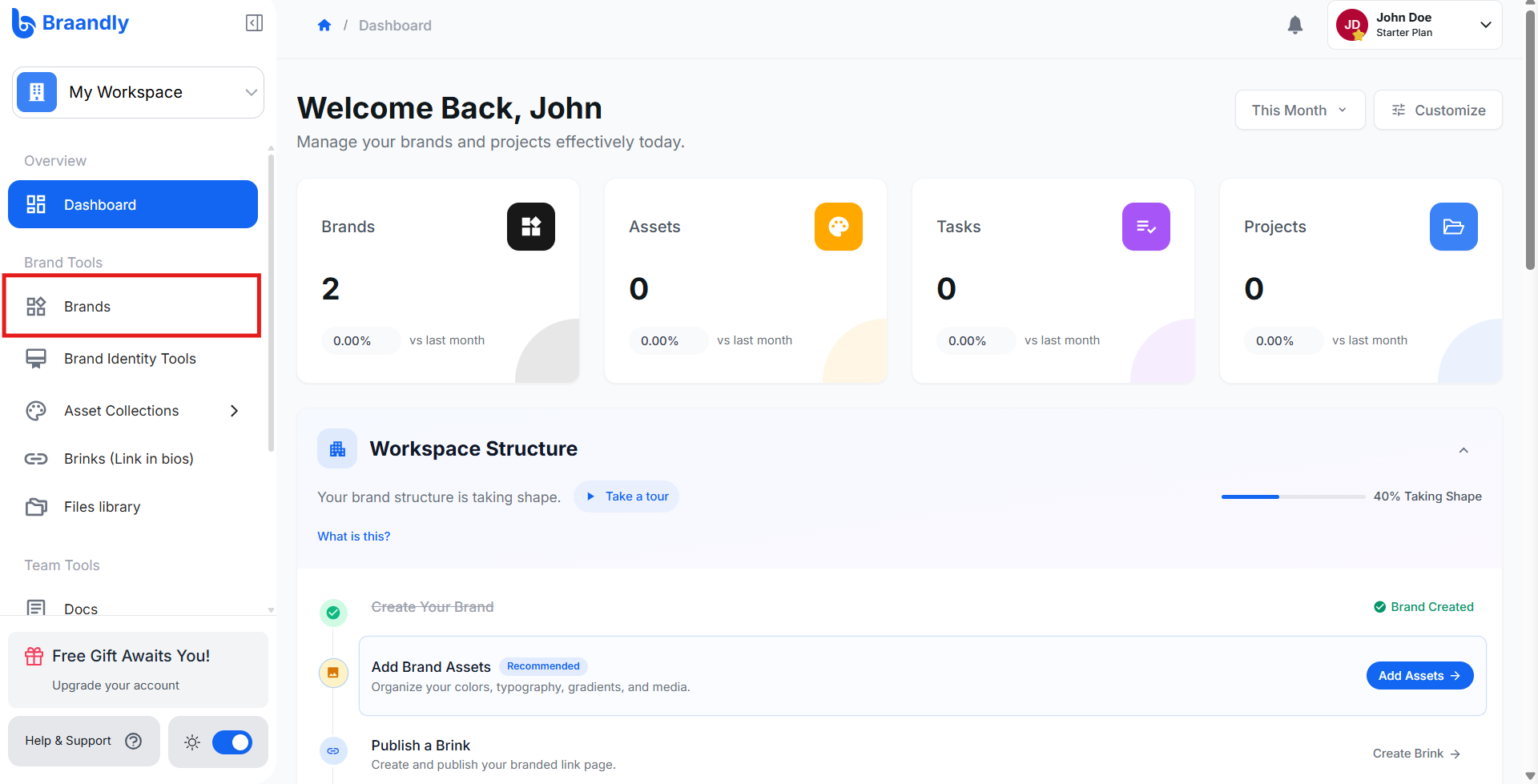
Open your workspace and go to Brands in the sidebar.
-
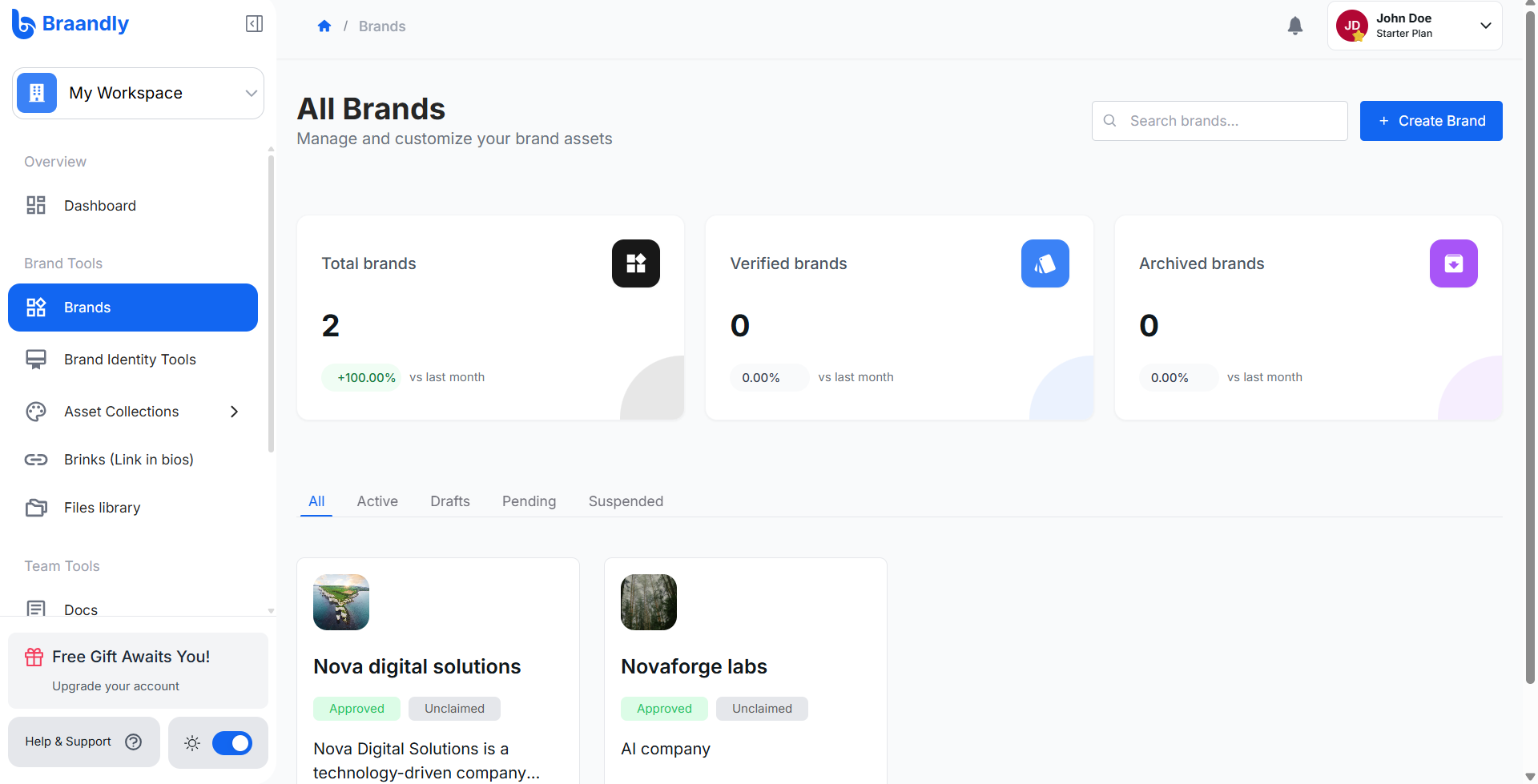
Select the brand you want to update. This shows the selected brand's overview.
-
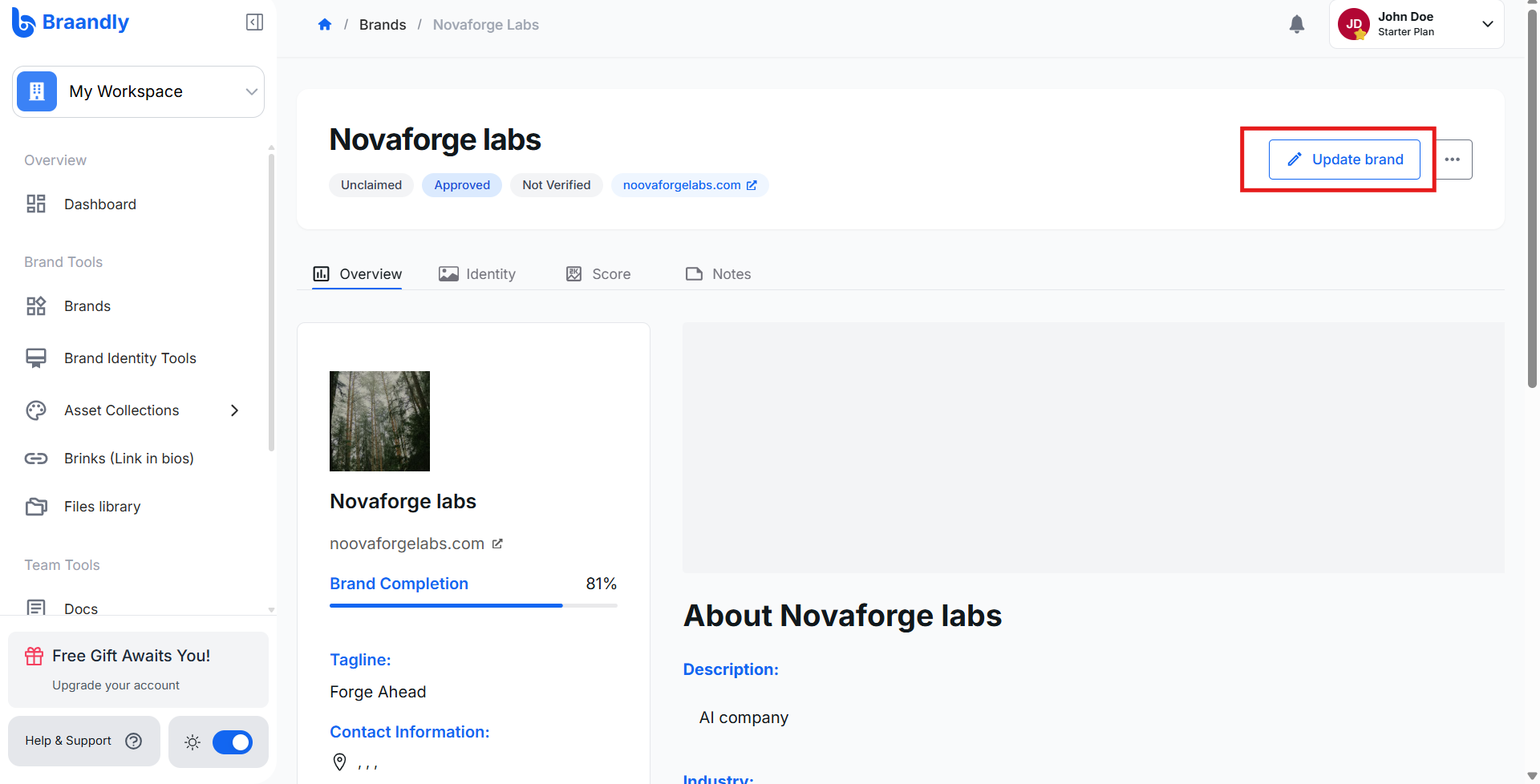
Click the Update brand button in the top right. You'll see the Update Brand Information page.
-
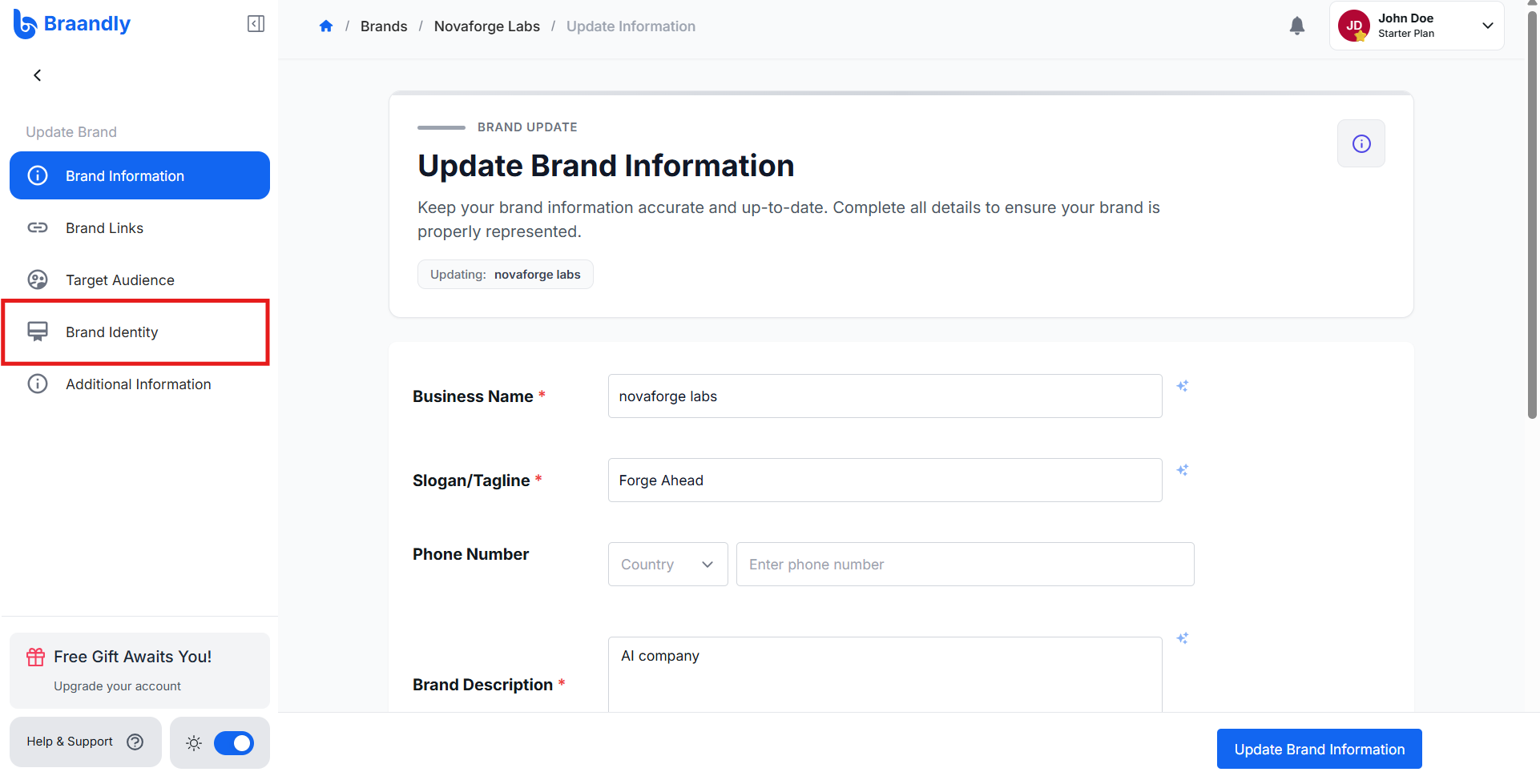
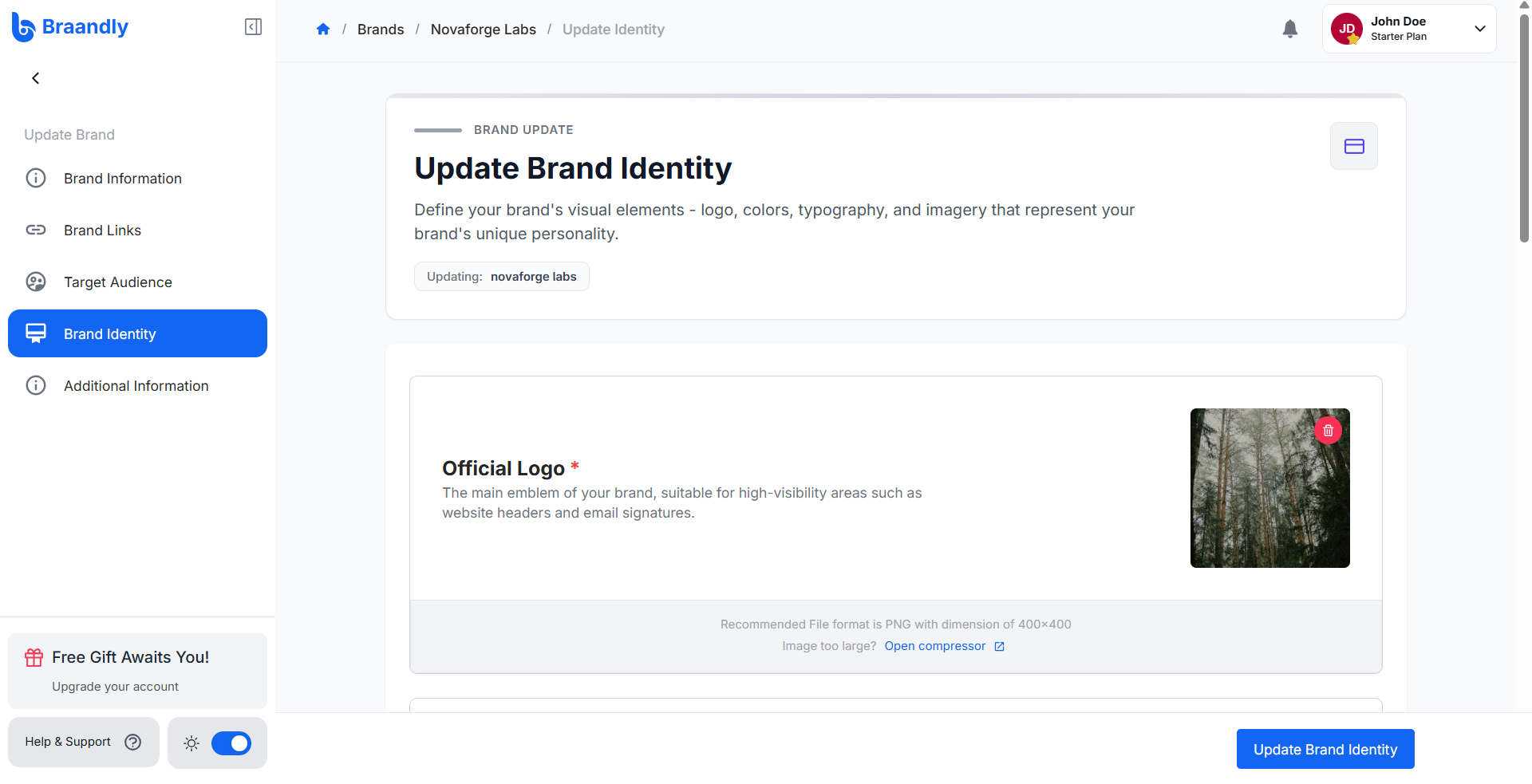
Go to the Brand Identity section in the Update Brand sidebar. This is the section list on the left of the update page, not the main workspace sidebar.
-
Update your brand fonts, colors, or upload a new logo, icon, symbol, or cover.
-
Click Update Brand Identity.
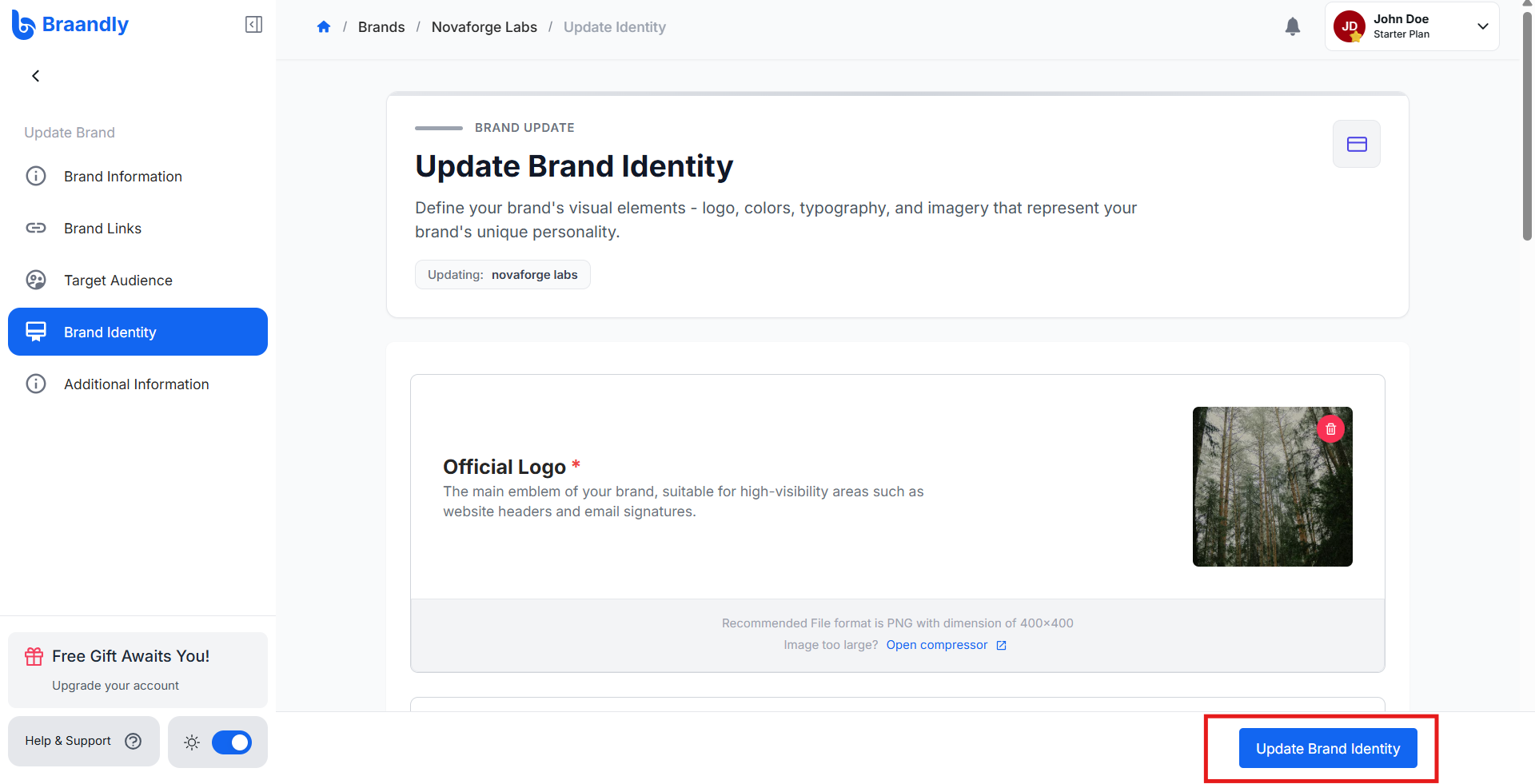
A "Brand identity updated successfully" message confirms the save, and you stay on the same page. Your updated brand identity appears across your workspace.
What you can change in this section
Logo, icon, symbol, and cover. Each has its own upload area. Only the logo is required. PNG at around 400x400 works best for the logo, icon, and symbol.
Brand colors. Add colors individually as primary, secondary, or tertiary, or use Select Palette and Select Gradient to pull in a set you have already saved or liked. At least one color is required.
Brand fonts. There are two slots, Heading and Body. Each opens a picker with a Google Fonts tab and a tab for uploading your own font file.
Removing your logo or all of your brand colors blocks the save. The error appears near the field rather than next to the button at the bottom, so if clicking Update Brand Identity seems to do nothing, scroll up to find it.
Updating your brand identity changes it for future work. Existing exports and guidelines retain the original logo unless you manually update them.
What else you can edit
Brand Identity is one of five sections on the update page. If what you are looking for is not under Brand Identity, it is in one of these:
| Section | What it covers |
|---|---|
| Brand Information | Business name, tagline, description, category and industry, services and products, phone number, year founded, and address |
| Brand Links | Your website and social profiles |
| Target Audience | Who the brand is for |
| Brand Identity | Logo, icon, symbol, cover, colors, and fonts |
| Additional Information | Remaining brand details |
Switch between them using the Update Brand sidebar. Each section saves on its own, so changing your fonts does not require re-saving your brand information.
Your brand's category and industry live under Brand Information, not Brand Identity. See Brand categories and industries.
How this affects your brand's visibility
Saving recalculates your brand's health score. If you remove assets and the score drops far enough, a public brand can stop appearing in explore and search. See Brand health score and Public vs private brands.
Troubleshooting
Why does nothing happen when I click Update Brand Identity? Your logo or brand colors are probably missing. Both are required, and the error message appears next to the field rather than at the bottom of the page.
Why was my file rejected? Brand assets must be under 2 MB and in a supported format. See Supported file formats.
Why do I see "Cannot update archived brand"? The brand is archived. Unarchive it from the brand overview page, then edit it.
Why can't I open the update page at all? You are likely a guest in this workspace. Guests have read-only access. See Workspace roles and permissions.
Next steps
If your visual identity has changed, update your Brand Guidelines to ensure your team follows the new standards.