
Braandly AI can help you build a brand profile directly inside your workspace.
Before you start
You need an active Braandly account and at least one workspace. If you have not set up a workspace yet, see Create a workspace.
You also need permission to create brands. Guests have view-only access and cannot create brands. AI generation uses your plan's AI credits, so availability depends on your plan.
Create your brand
-
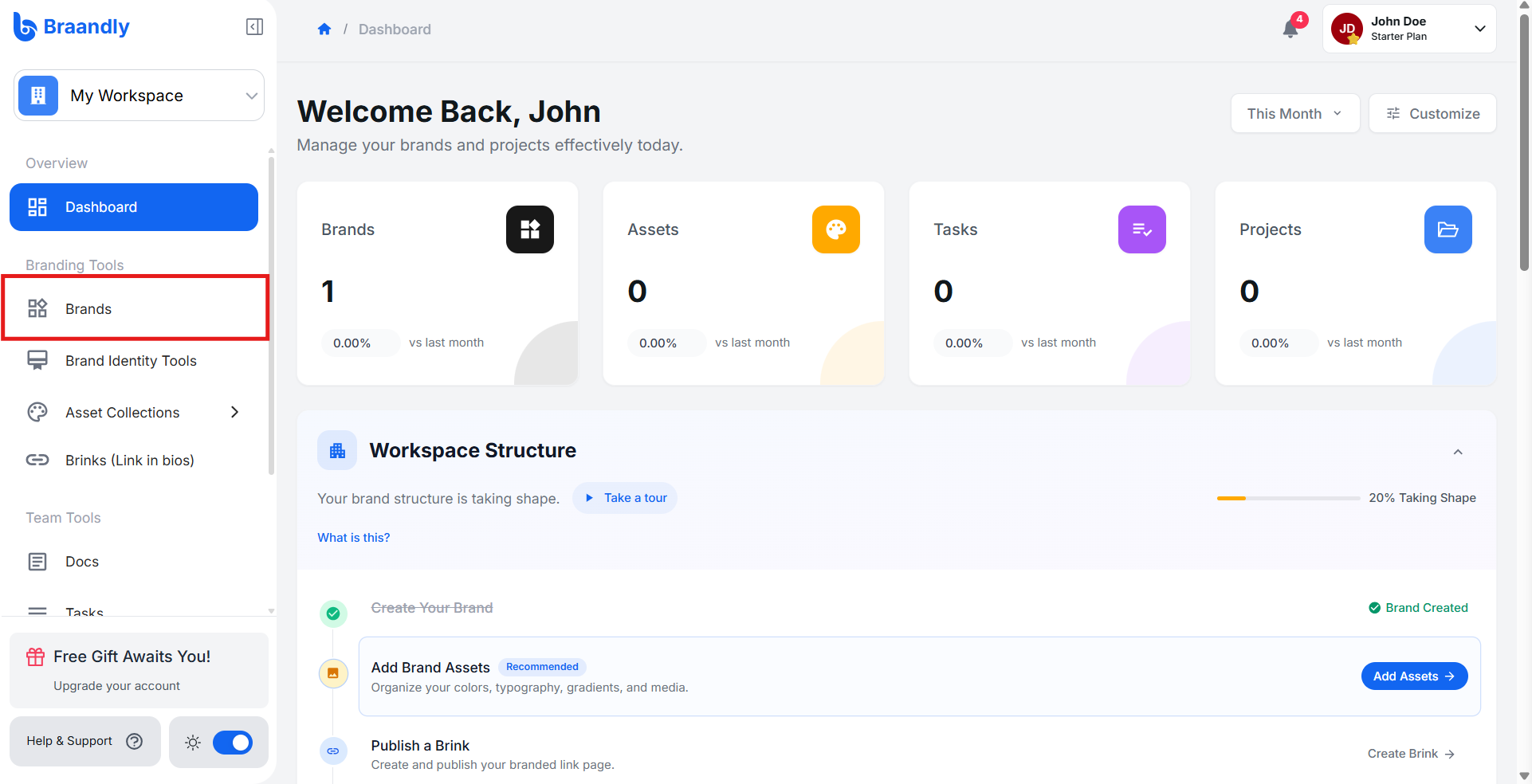
Open your workspace dashboard and click Brands in the sidebar.
-
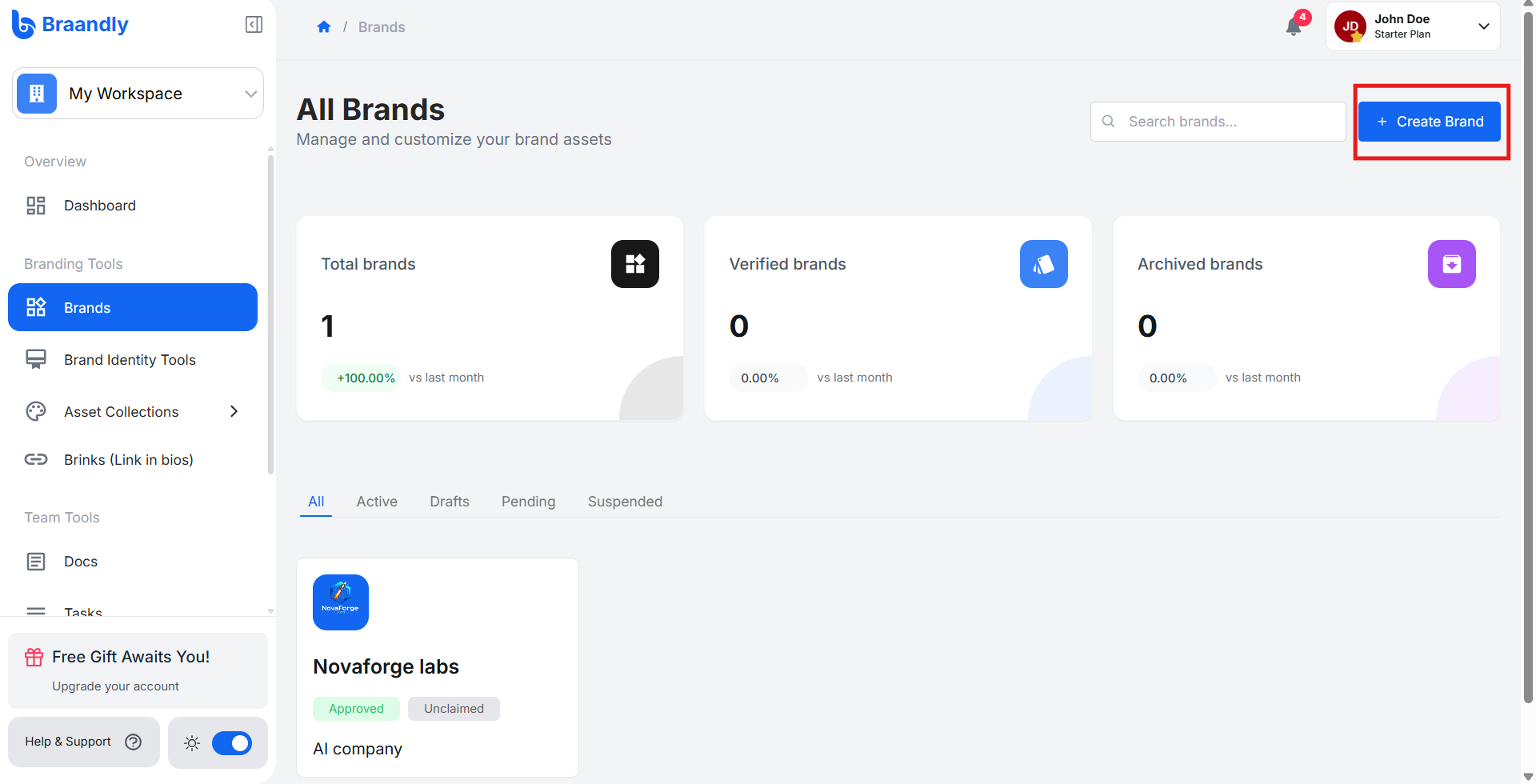
Click Create Brand in the top right corner.
-
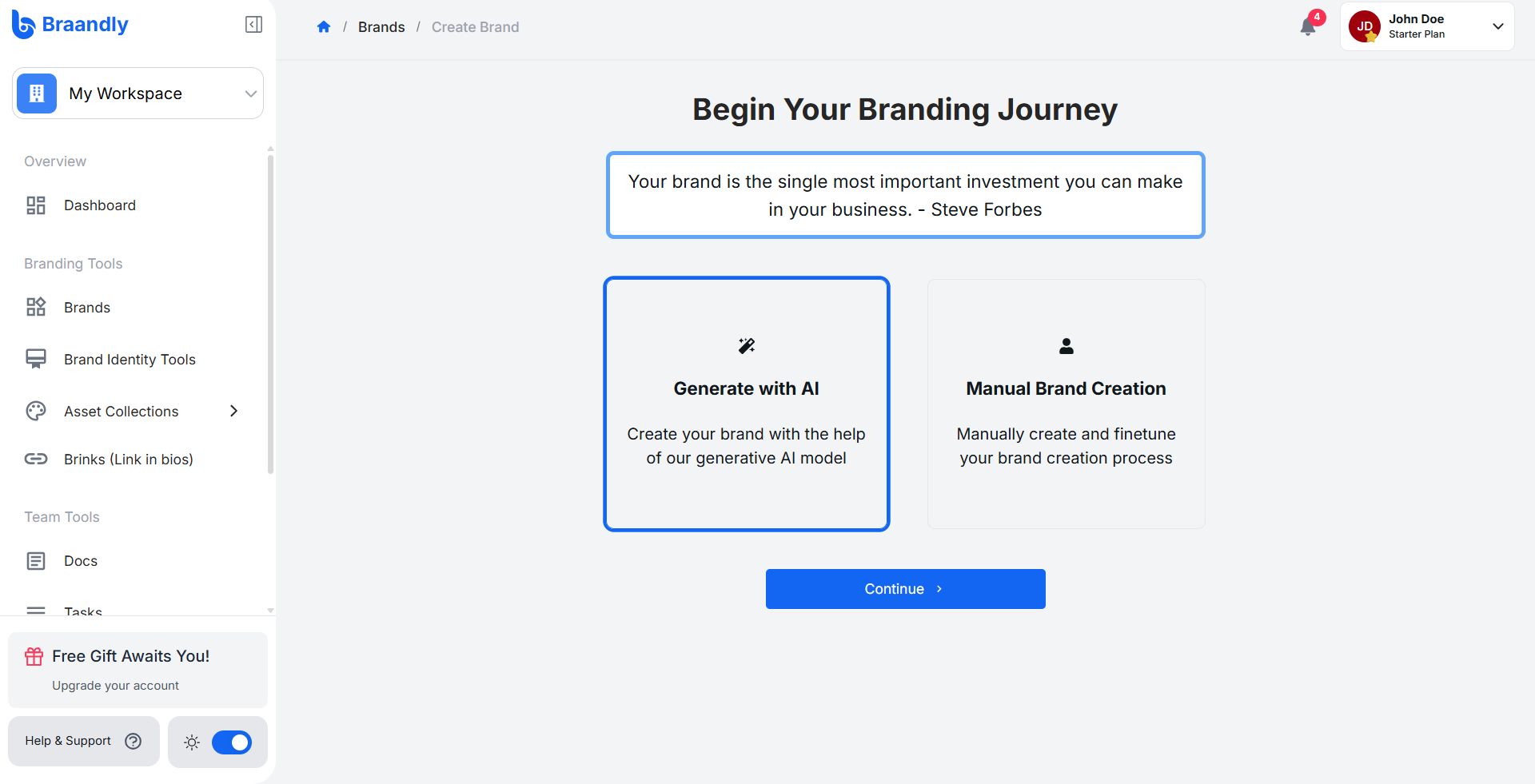
Select Generate with AI from the brand creation options. Click Continue.
-
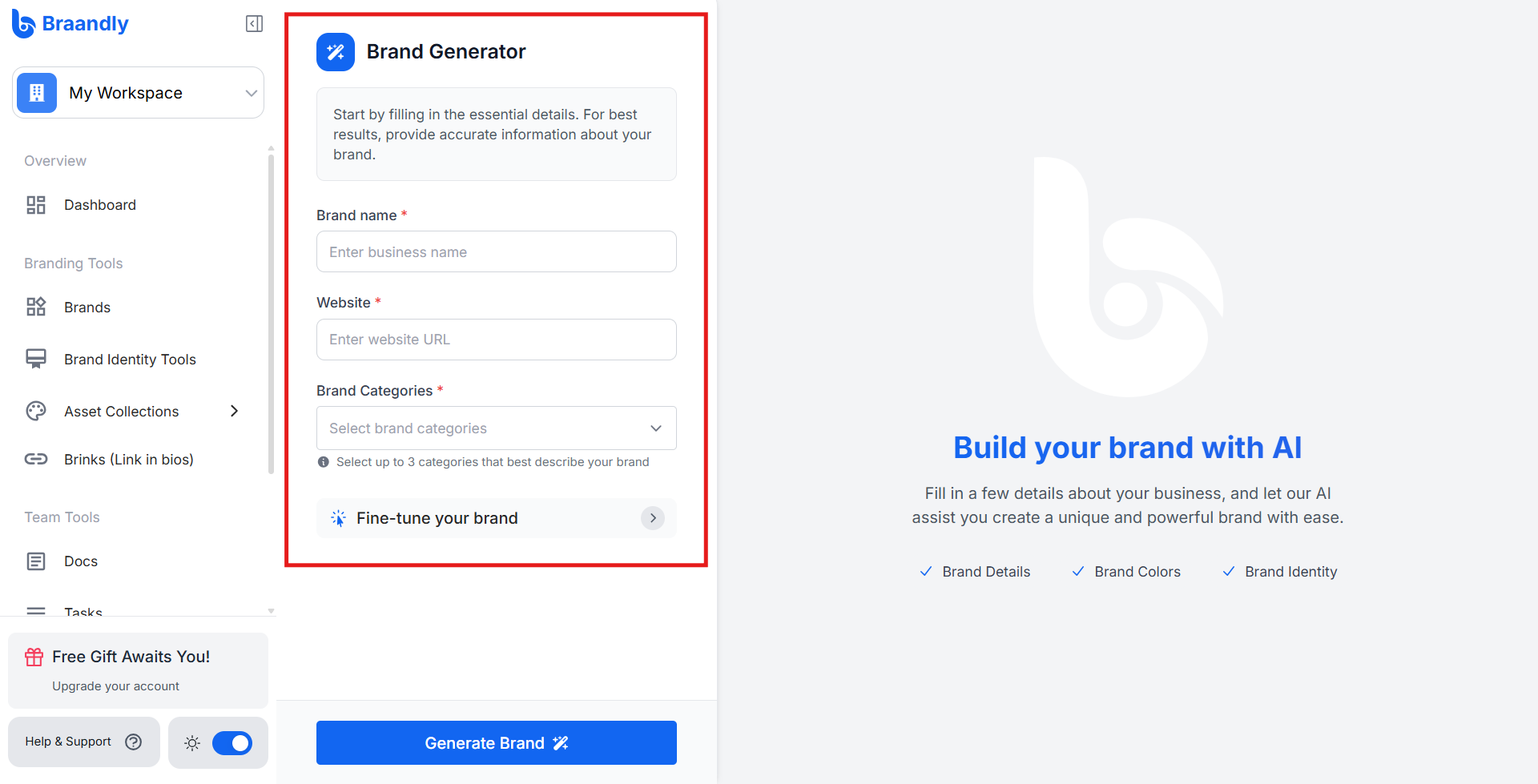
Enter your brand name, website, and brand categories.
-
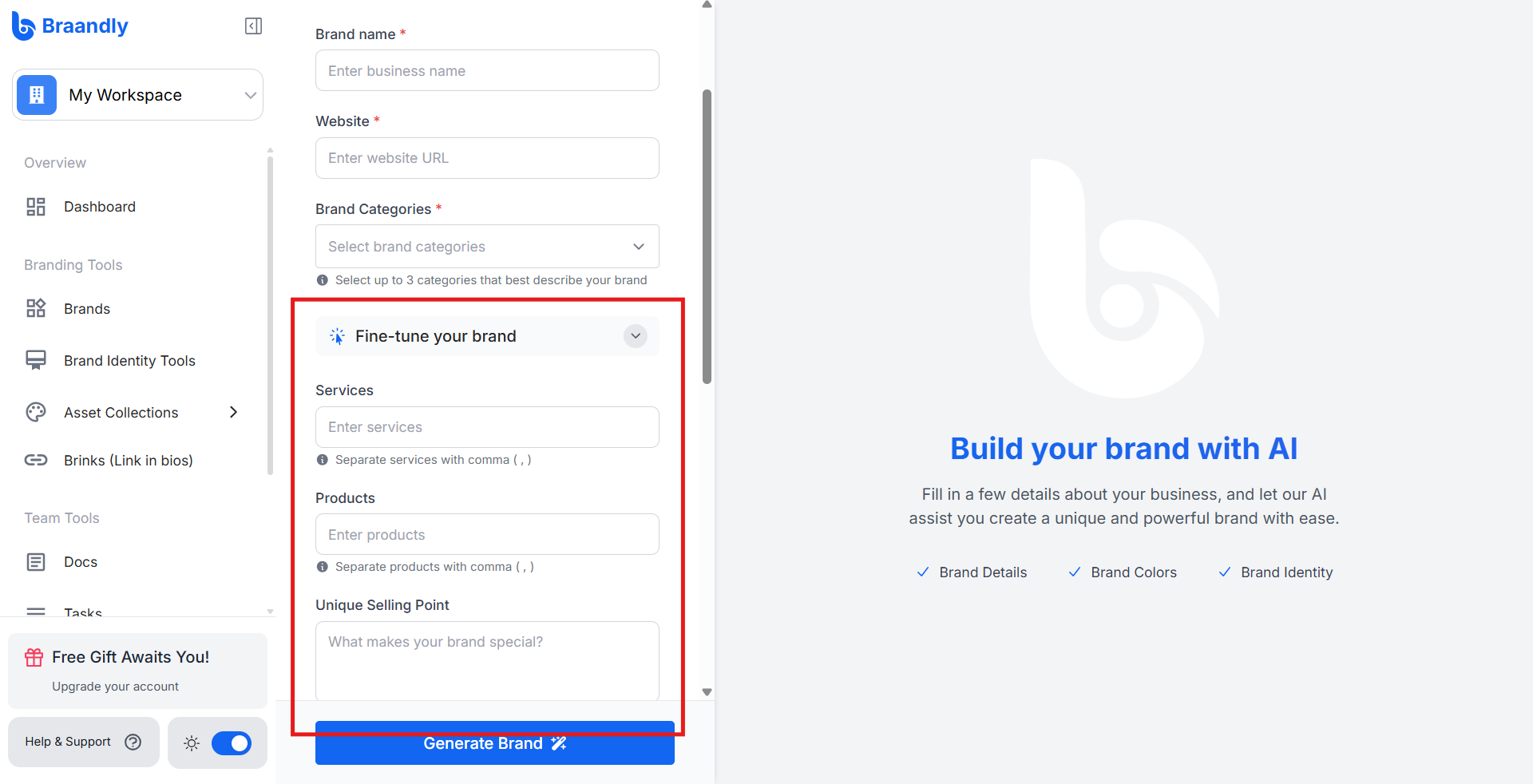
Optionally, click Fine-tune your brand and provide additional details to refine your results.
-
Click Generate Brand.
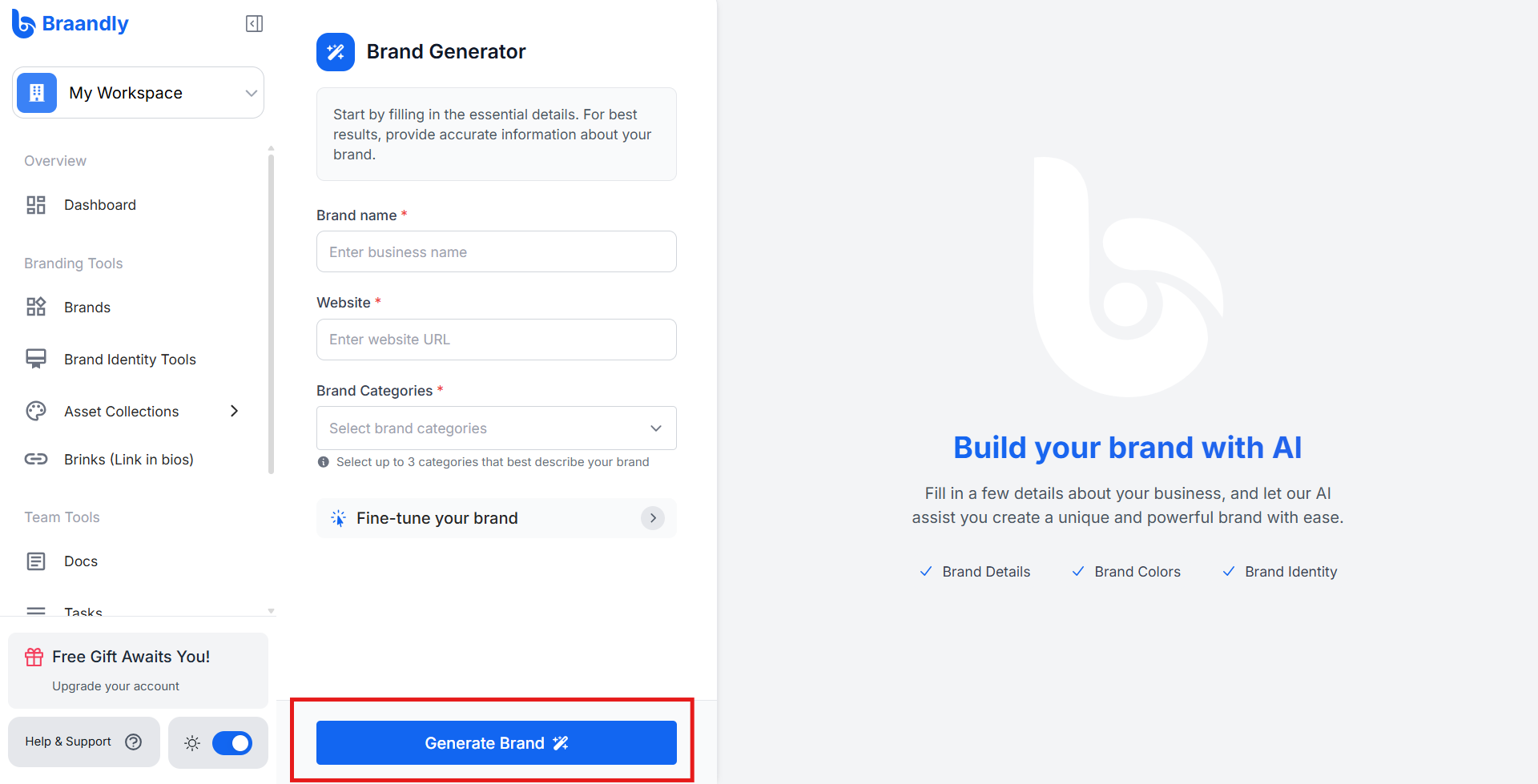
The AI builds your initial brand structure. This process takes a few moments.
Result
When generation finishes, you'll see Your Brand is Ready! with your new brand. Review it across two tabs:
- Overview: name, tagline, description, website, services, and products.
- Identity: logo, colors, and fonts.
Your brand is saved as a Draft. Click Edit and Publish Brand to open the brand editor, adjust any details, and publish.
The AI provides a starting framework. You can edit, add, or delete any generated asset or information at any time to match your exact brand standards.
If a brand already exists for your website
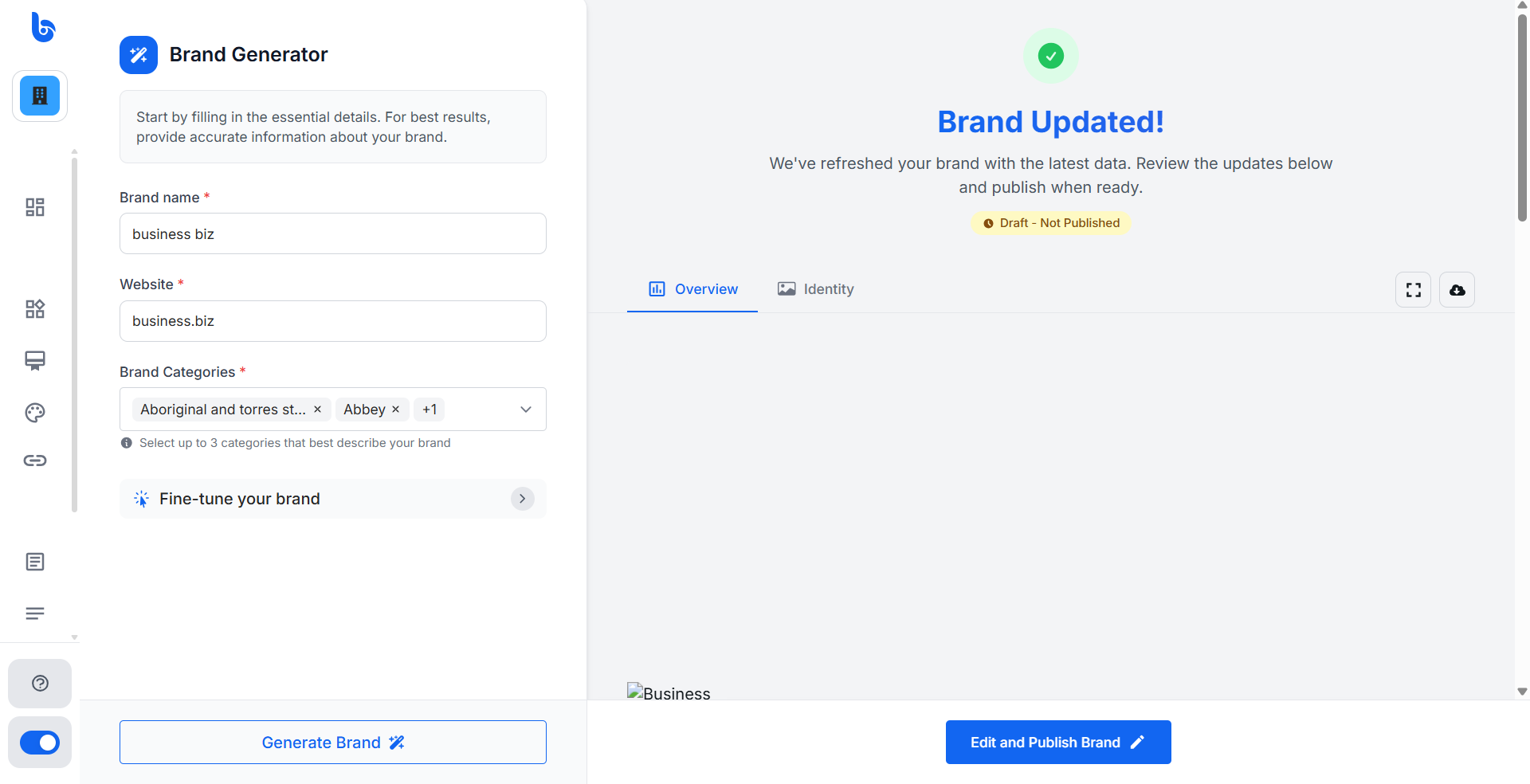
If the website you enter already has a brand, Braandly flags it with a Brand Updated Page and shows the existing brand with an Edit and Publish Brand button.
Next steps
Review your brand identity to ensure it aligns with your vision. See How to edit brand identity to refine your brand identity.