
This guide shows you how to sign in with your email or Google account using either the dedicated sign-in page or the sign-in modal, and what to do if you run into authentication issues.
Prerequisites
Before signing in, make sure you have created an account. If you do not have an account yet, see Create your account.
Sign in via the Sign-in Modal
If you are browsing the main website or public documentation pages, you can sign in instantly without leaving your current page by using the sign-in modal.
- Click Sign In in the top navigation bar of any public page. The sign-in modal pops up over your current screen.
- Enter your account email address and password.
- Click Login.
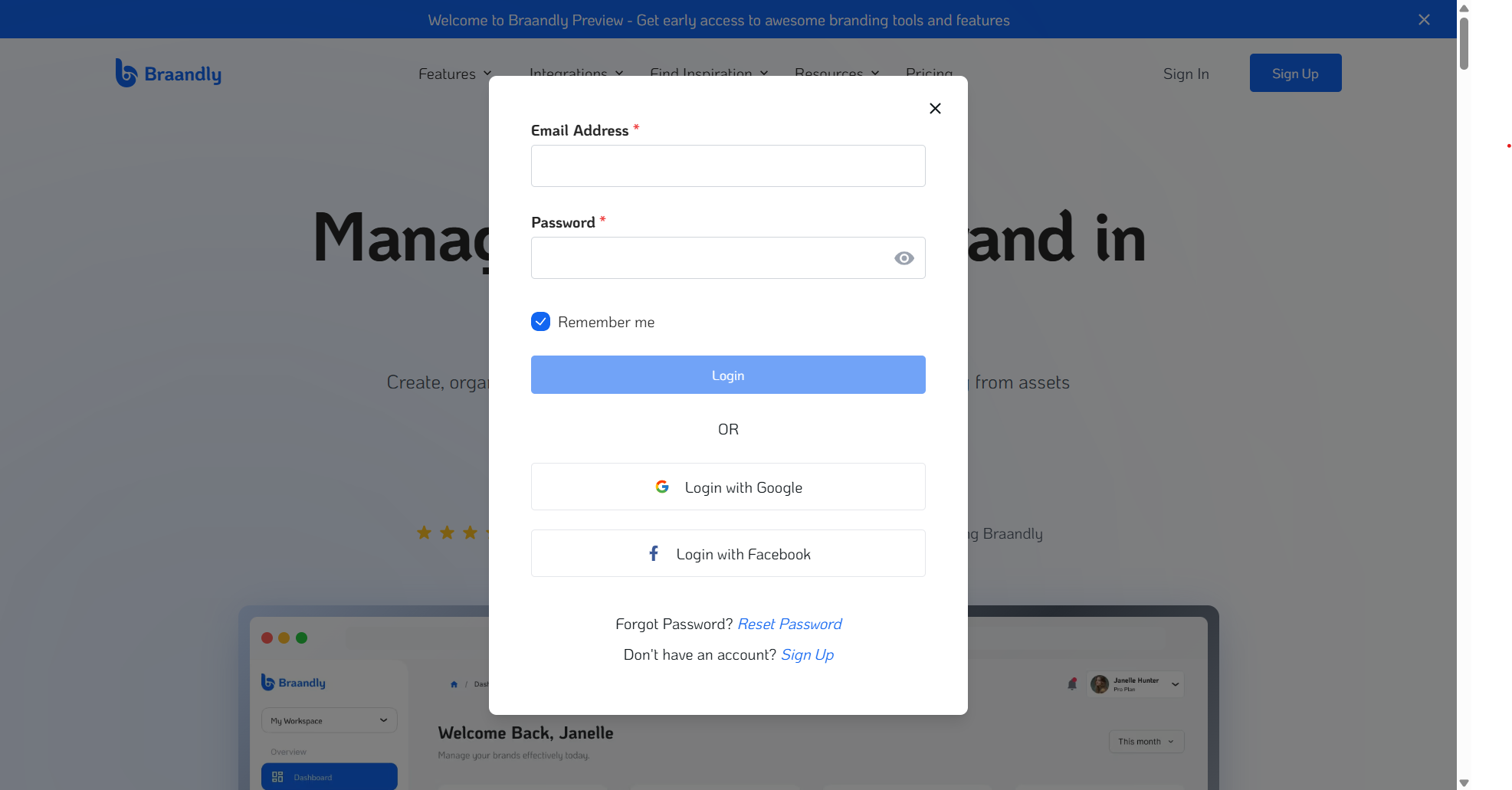
The modal closes, authentication completes, and the system directs you to your default workspace.
Sign in via the dedicated sign-in page
Use this method if you are navigating directly to the application platform URL.
- Go to
braandly.com/signinin your web browser. - Enter the email address associated with your Braandly account.
- Enter your password.
- Click Log In.
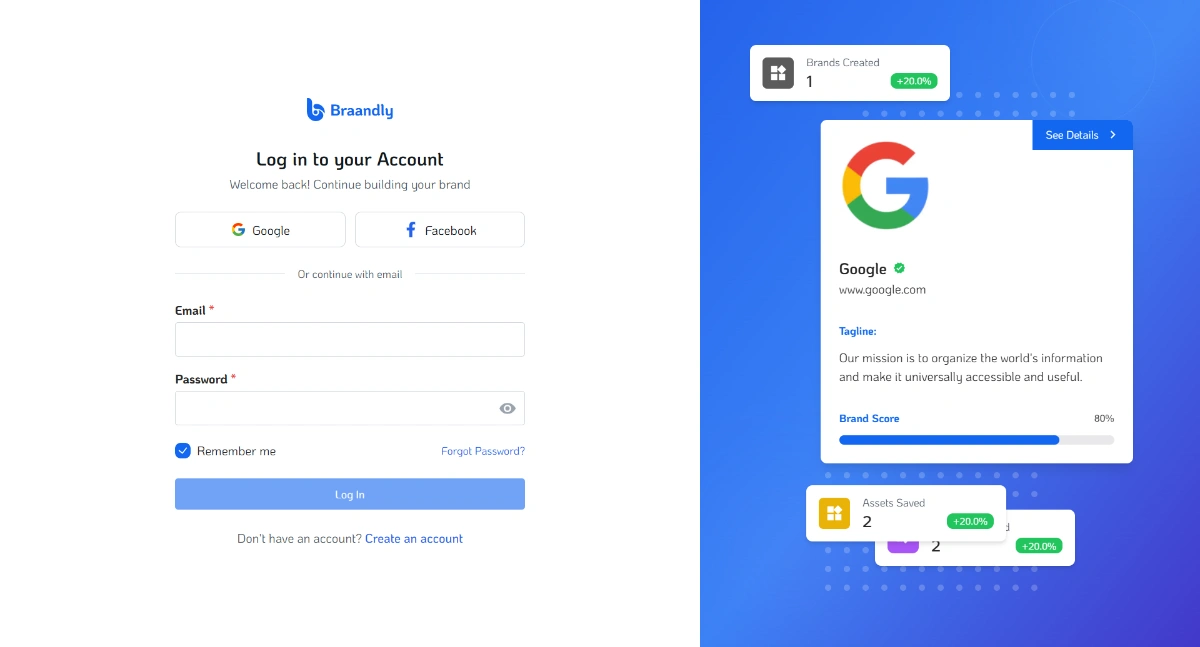
Your dashboard opens automatically, showing your default workspace.
Sign in with Google
If you set up your account using your Google profile, you can bypass the password entry on either the sign-in page or the sign-in modal.
- On the sign-in page or sign-in modal, click Login with Google.
- Choose your Google account from the prompt.
Your default workspace opens automatically once Google authenticates your account.
Troubleshooting sign-in issues
Why does it say "Incorrect password"?
You entered an incorrect password. Double-check your spelling and caps lock. If you forgot your password, see Reset Password.
Why haven't I received my password reset email?
Check your spam or promotional folders. The reset email arrives from noreply@braandly.com within a few minutes.
Why am I unable to access my team's workspace after signing in? If you are directed to an empty default workspace, you might be signed in with a different email address than the one your team invited. Log out, verify the exact address used in your invitation email, and sign in again.
For security, password reset codes expire after 10 minutes. If your code expires, return to the sign-in page or sign-in modal and request a new one.
Next steps
Once you are signed in, you can update your personal profile. See Edit your account profile.