
If you lose or forget your Braandly account password, you can reset it securely from the login page. This guide walks you through requesting a reset link and choosing a new password to regain access to your workspace.
Request a password reset
- Go to the Braandly login page (
braandly.com/signin) or the sign-in modal. - Click Forgot password? below the sign-in fields.
- Enter the email address associated with your Braandly account.
- Click Reset Password.
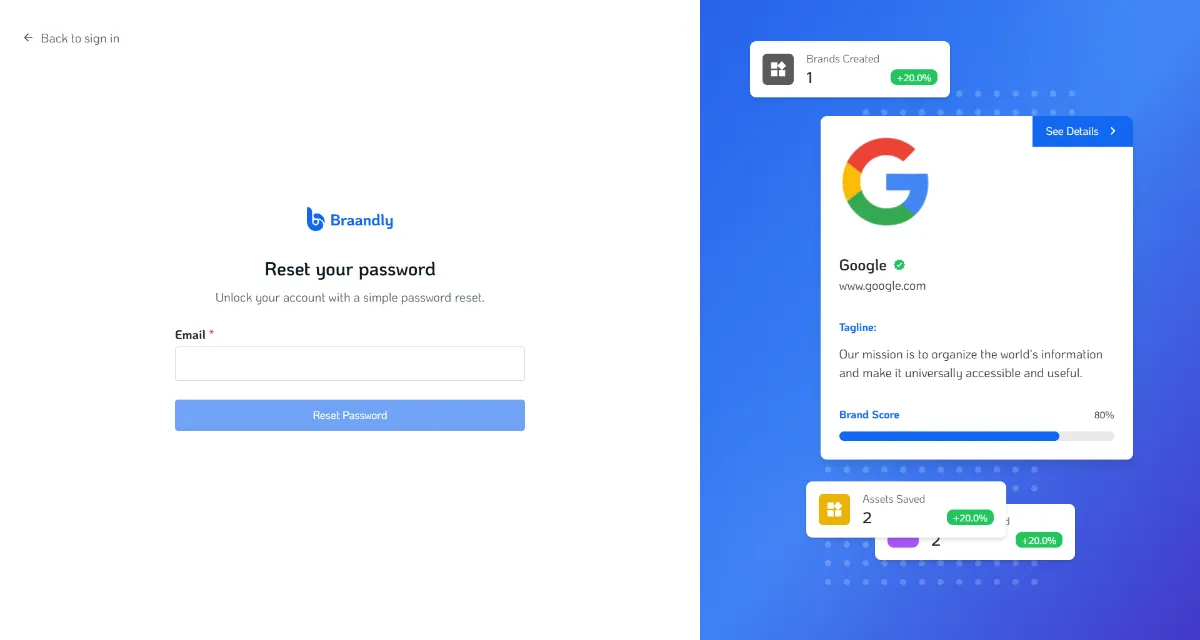
Check your inbox for a password reset email from Braandly. If you do not see the email within a few minutes, check your spam or junk folder.
Choose a new password
- Copy the verification code from the email and return to the Braandly reset page.
- Enter the code in the Verification Code field. This code expires after 10 minutes.
- Enter your new password in the New Password field.
- Re-enter the password in the Confirm Password field.
- Click Set New Password.
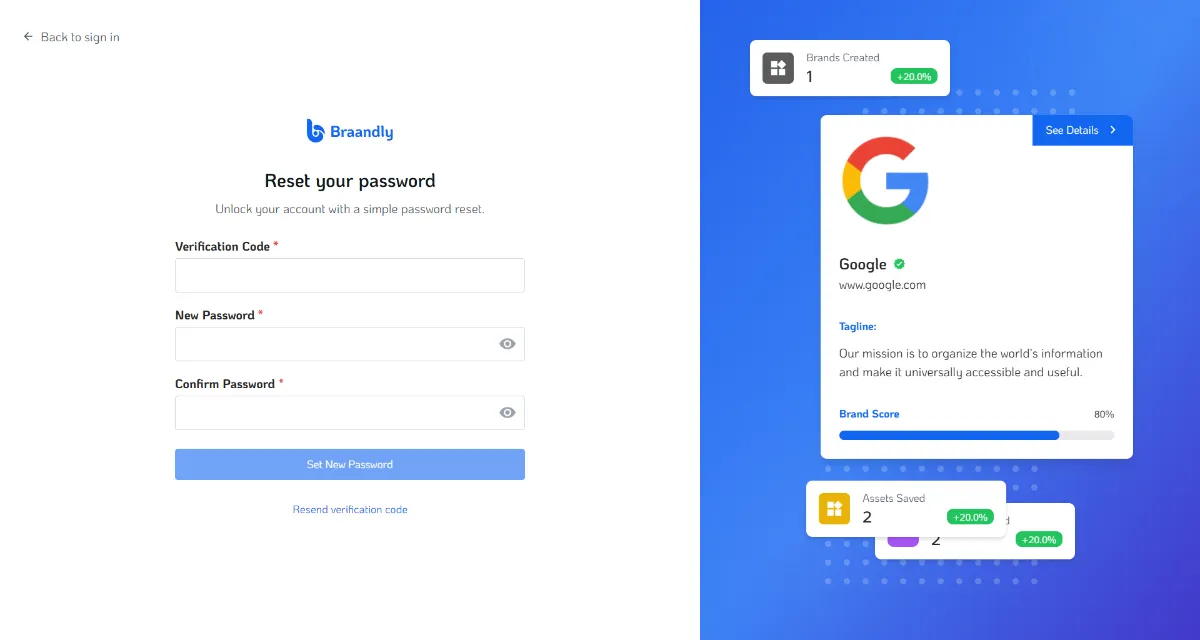
Your password is now updated. The login page opens automatically, and you can sign in using your email and your new password.
Troubleshooting
What should I do if the verification code has expired?
Verification codes are valid for 10 minutes. If your code expires, return to the password reset page and click Resend verification code to receive a new code.
Why am I not receiving the reset email? First, verify that you entered the exact email address you used to register your Braandly account. If the email is correct and you have checked your spam folder, wait a few minutes, or try requesting the link a second time.