
Your profile details identify you to your team when collaborating inside a workspace. This guide walks you through updating your personal information, changing your profile photo, and adjusting your account preferences.
Edit your profile details
- Click your profile name in the top right corner of the dashboard.
- Select Profile from the pop-up menu.
- Click the Update profile button in the Profile tab.
- Update your details.
- Click Update Profile.
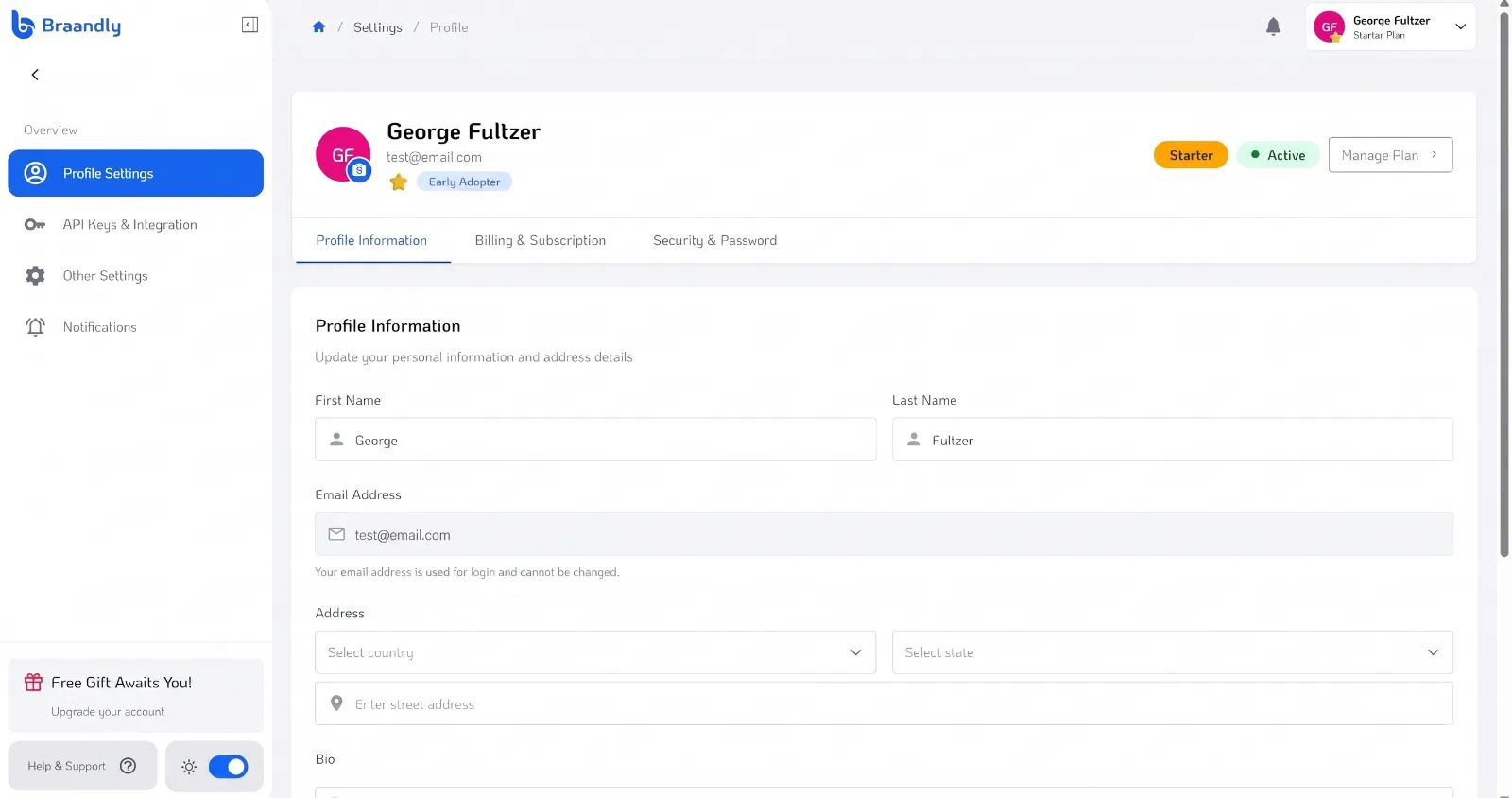
Your updated details now show on your profile.
Change your profile photo
- Inside your Profile Settings, navigate to the Profile tab.
- Hover over your current profile picture and click it. A modal to change your profile picture will appear.
- Click the avatar to choose a photo.
- Choose an image file from your computer.
- Click Update profile picture to save.
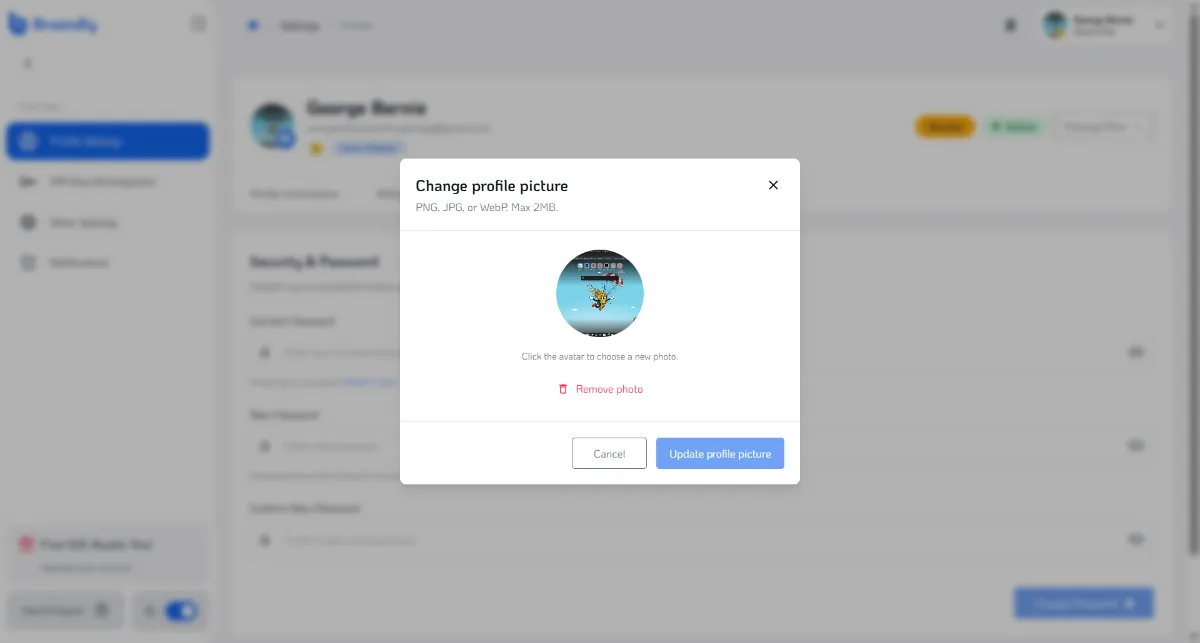
Your new photo appears immediately in your profile.
If you do not upload a custom photo, Braandly automatically generates an avatar using your first and last initials.
Troubleshooting
Why won't my profile photo upload?
The image file may be too large or in an unsupported format. Ensure your photo is a JPG or PNG file and is smaller than 2MB.
Can I change my account email address here? No. Your email address is used for login and cannot be changed.
Next steps
Now that your personal profile is ready, you can manage your account settings. See Manage account settings.