
Inviting your team members to a workspace ensures everyone has access to the same brand guidelines and assets. This guide shows you how to invite members to collaborate in a workspace.
Before you start
You need admin permissions to invite new members.
Send an invitation
-
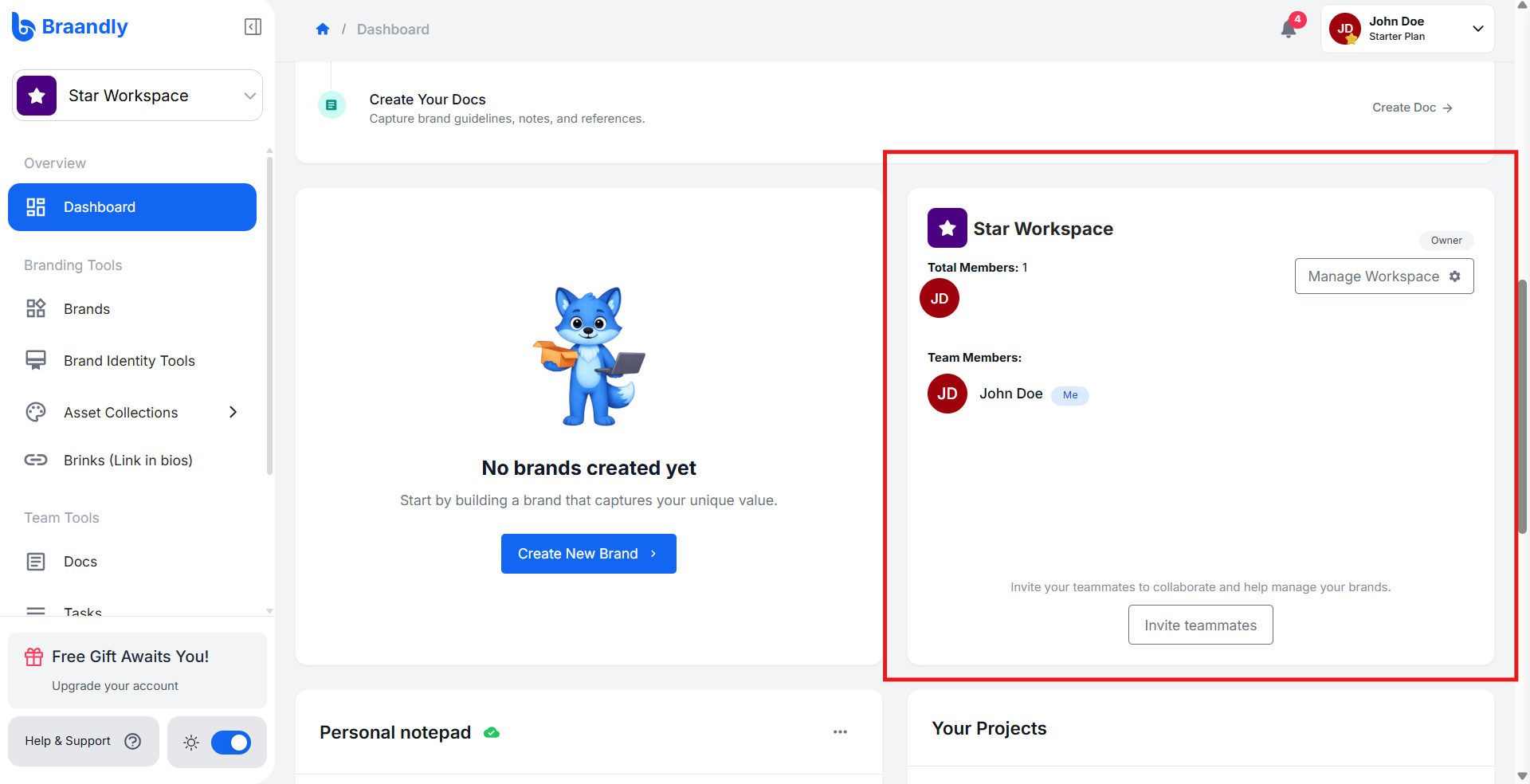
On your dashboard, scroll down until you see the team members list.
-
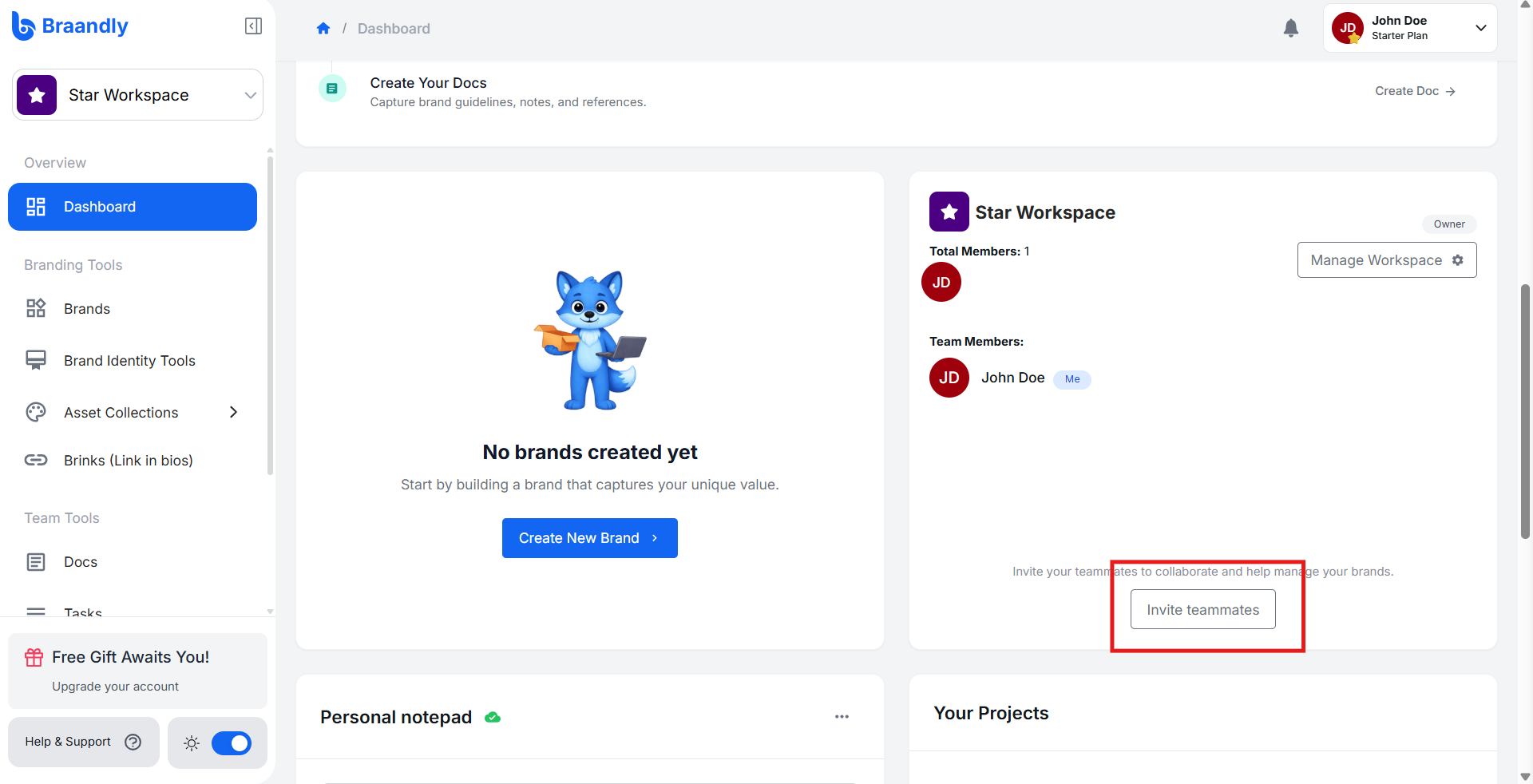
Click Invite teammates to enter the workspace settings.
-
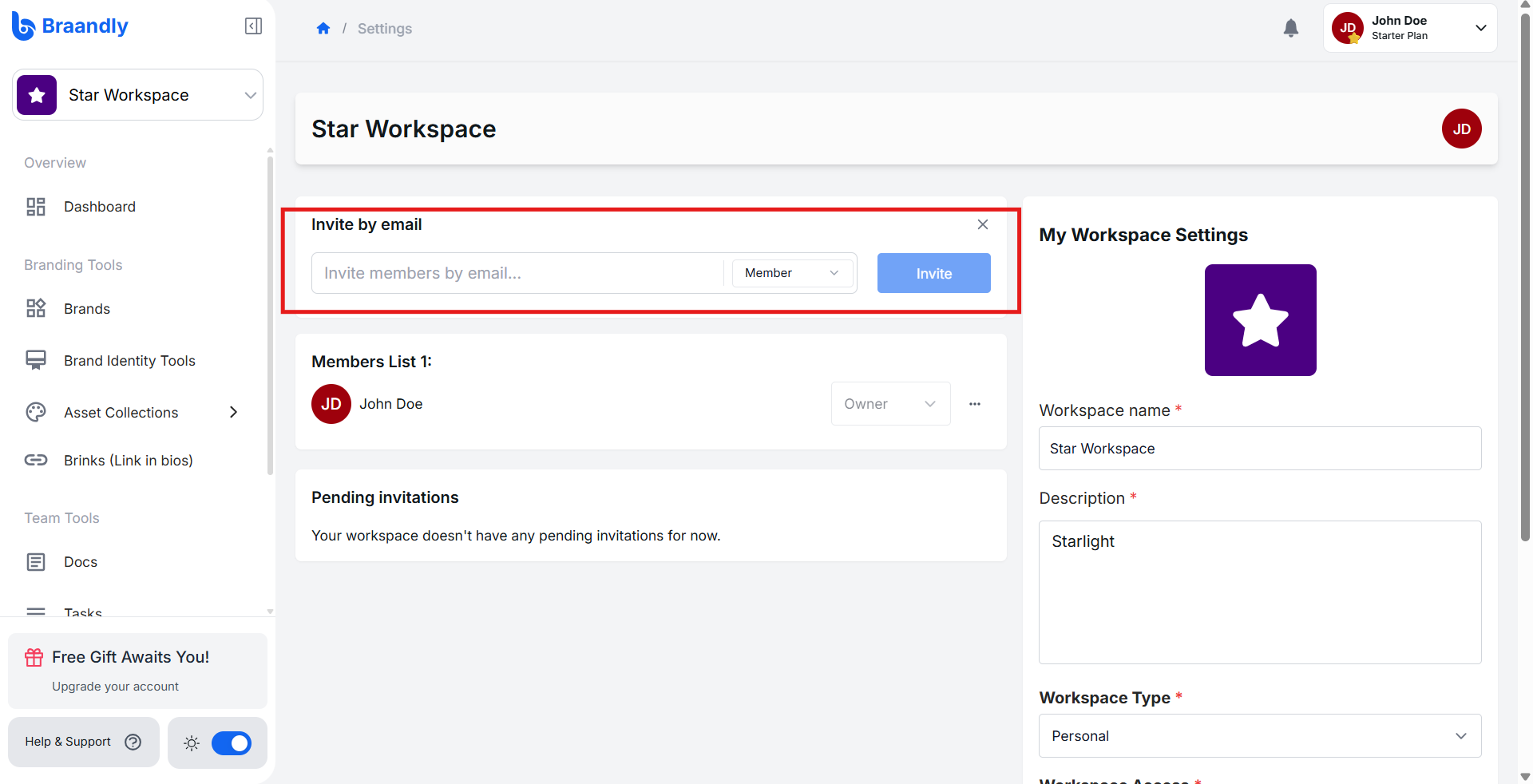
Enter the email address of the person you want to invite.
-
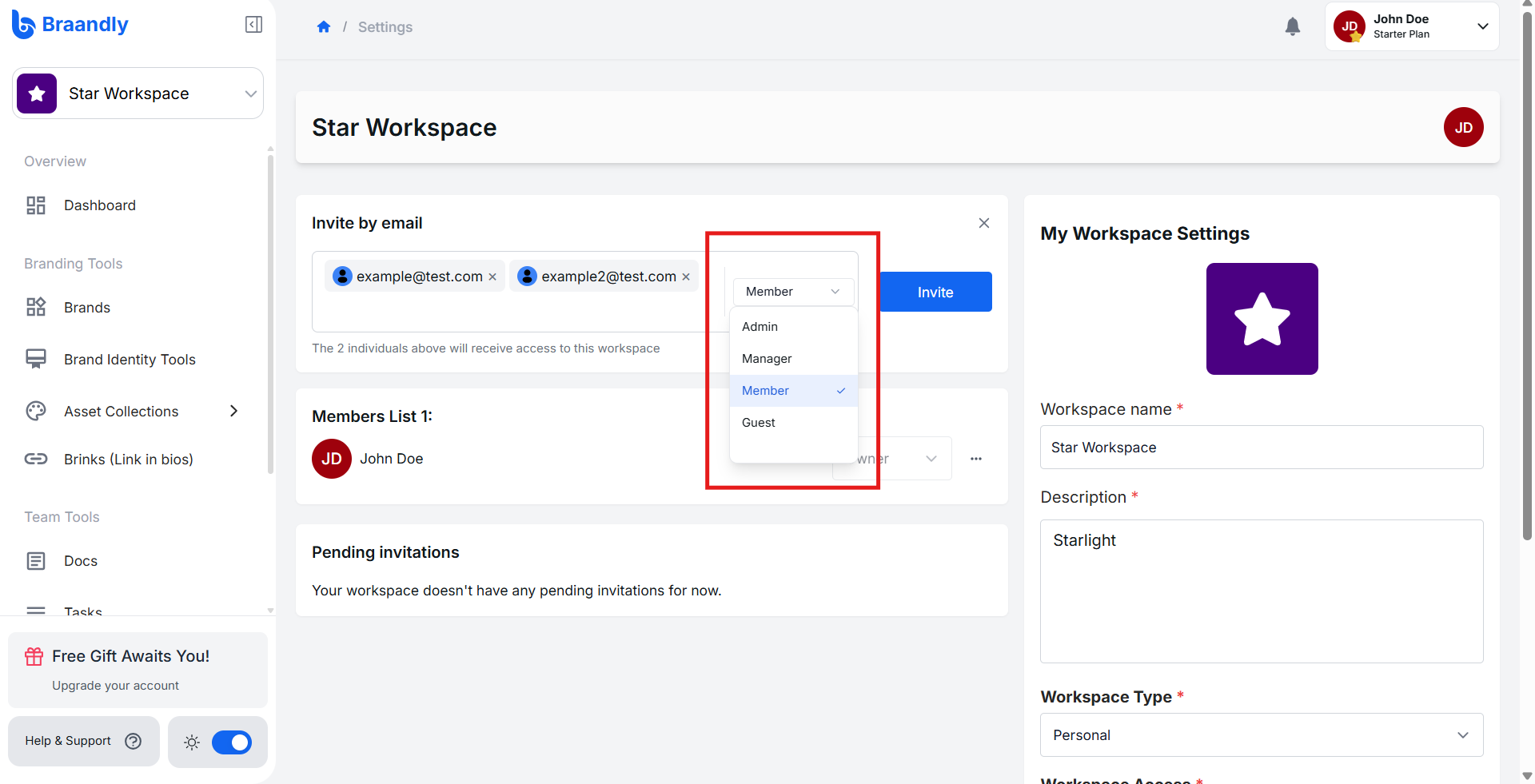
Select a permission role from the dropdown, which includes Admin, Manager, Member, and Guest.
-
Click Invite. A pop-up displays Invitations sent successfully.
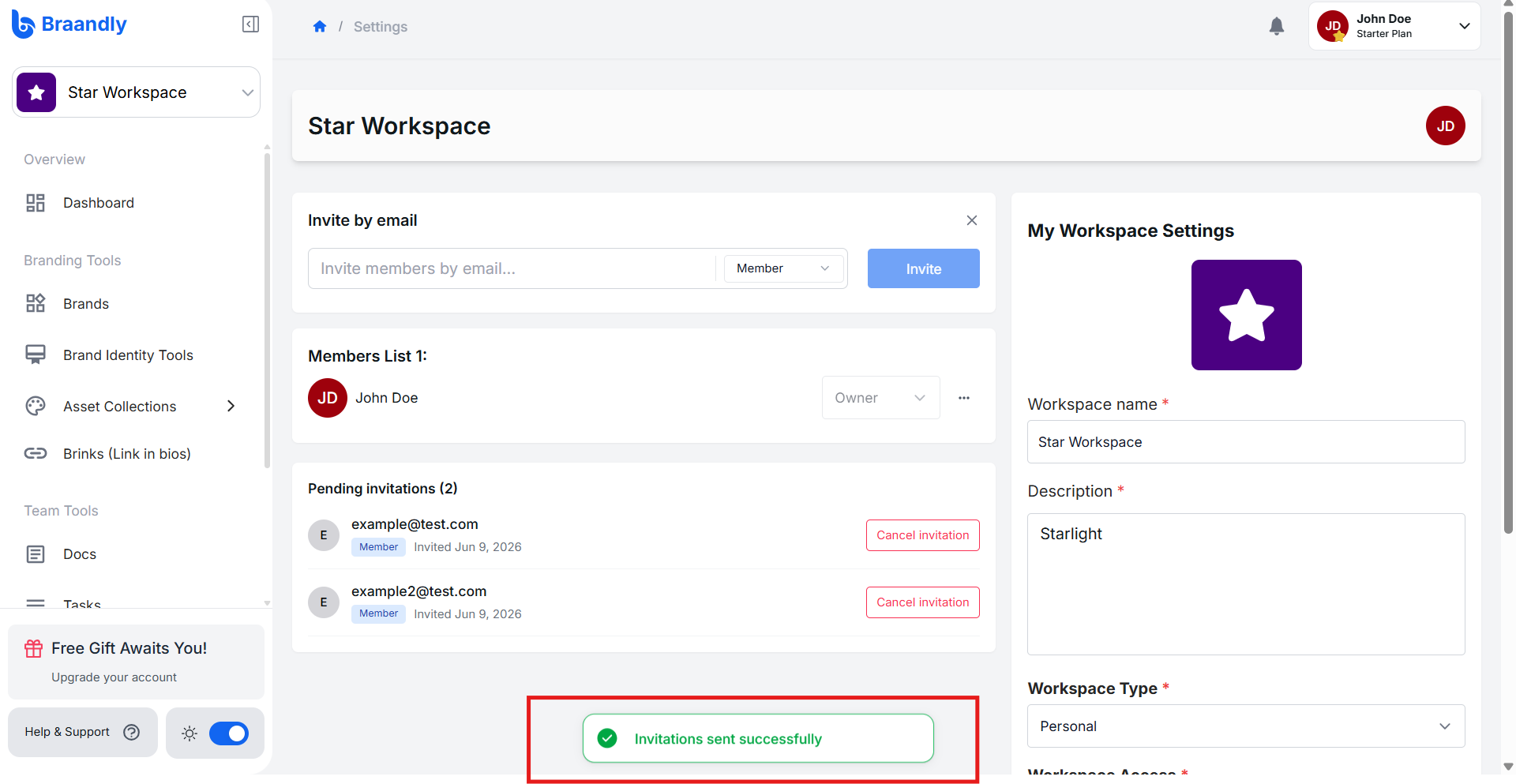
The invited person receives an email with a secure link to join your workspace. The invitation remains pending until it is accepted.
If a team member does not receive their invitation email, ask them to check their spam folder or click Cancel Invitation and invite them again.
Troubleshooting
Why can't I click the Invite teammates button?
Because you do not have admin permissions. Contact your workspace owner to assign you the admin role.
Next steps
Now that your team has access, create your first brand. See Create brand using AI or Create brand manually.