
An API key is how an integration proves it is allowed to act on your account. The public API, the MCP server, the Figma plugin, and the browser extension all authenticate with one. This guide shows you how to create a key, choose what it can do, and keep it safe.
Where API keys live
Your keys are in the app under Settings > API Keys. From there you can create a new key, see the keys you already have (shown masked), and revoke ones you no longer use.
Create a key
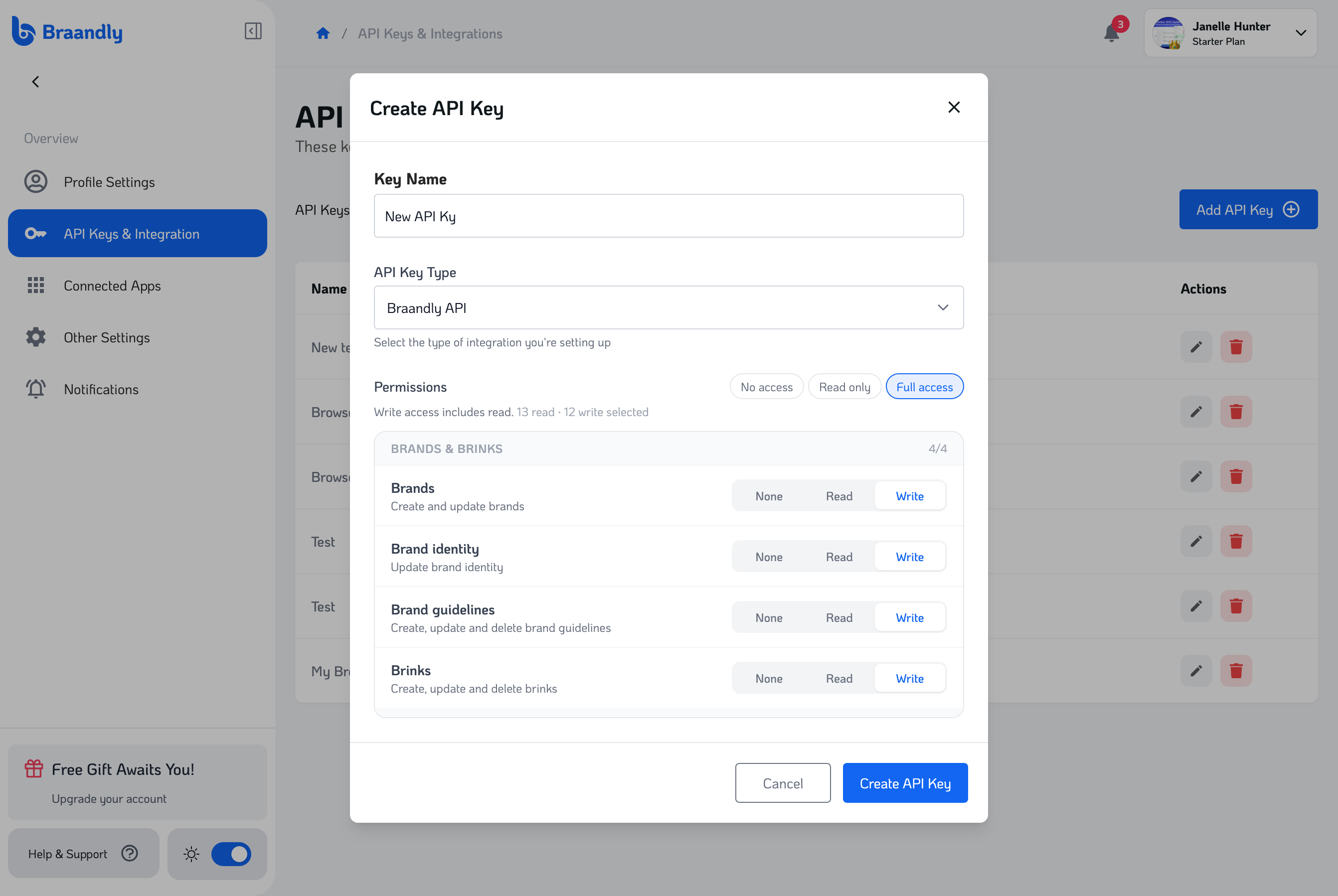
- Open Settings > API Keys.
- Click Create new key.
- Give the key a title you will recognize later, for example "Figma plugin" or "Automation script".
- Choose the key type that matches where it will be used (see the table below).
- Select the scopes the key needs. Grant only what the integration actually uses.
- Optionally set an expiry date. After that date the key stops working.
- Click Create, then copy the key right away.
Your full key is shown only once, at the moment you create it. Copy it and store it somewhere safe, like a password manager. After you close the dialog, Braandly only ever shows a masked version (bk_**** plus the last four characters), and the full key cannot be retrieved again. If you lose it, create a new one.
How a key is used
Send the key in the ApiKey request header. Every Braandly key starts with bk_.
ApiKey: bk_your_api_key_here
Key types
Pick the type that matches the integration. The type tells Braandly where the key is allowed to be used from.
| Type | Use it for |
|---|---|
api | Your own code, scripts, and the MCP server |
figma | The Braandly Figma plugin |
browser | The Braandly browser extension |
wordpress | The WordPress integration |
adobe | The Adobe integration |
A key's type ties it to where it can be used. A browser or figma key only authenticates from that surface, so it will not work in a script. For your own code and for the MCP server, use the api type.
Scopes
Scopes decide what a key can read and write. Each resource has a read scope and, where writing is supported, a matching write scope. Grant the smallest set that does the job.
| Resource | Read scope | Write scope |
|---|---|---|
| Brands | read:brands | write:brands |
| Brand identity | read:brand-identity | write:brand-identity |
| Brand guidelines | read:brand-guidelines | write:brand-guidelines |
| Workspaces | read:workspaces | write:workspaces |
| Members | read:members | read only |
| Projects | read:projects | write:projects |
| Tasks | read:tasks | write:tasks |
| Docs | read:docs | write:docs |
| Comments | read:comments | write:comments |
| Brinks | read:brinks | write:brinks |
| Palettes | read:palettes | write:palettes |
| Fonts | read:fonts | write:fonts |
| Gradients | read:gradients | write:gradients |
A key can only do what your workspace role allows. A guest is read-only, so a guest's key cannot write even if it holds a write scope. Creating or changing data needs a workspace role of member or higher.
Keep your keys secure
- Treat a key like a password. Anyone who has it can act as you, within its scopes.
- Never commit a key to a repository or paste it into a public place. Store it in environment variables or a secrets manager.
- Use a separate key per integration. If one leaks, you can revoke it without breaking the others.
- Set an expiry for keys you only need temporarily.
Rotate or revoke a key
To rotate a key, create a new one, update your integration to use it, then revoke the old one. To revoke a key, open Settings > API Keys and remove it. A revoked key stops working immediately.
Rate limits
Authenticated requests are limited per key, in a rolling 15-minute window, and the allowance scales with your plan. These are the current limits.
| Plan | Reads per 15 min | Writes per 15 min |
|---|---|---|
| Starter | 300 | 150 |
| Plus | 750 | 450 |
| Pro | 1,500 | 1,500 |
| Ultimate | 3,000 | 3,000 |
When you go over the limit, the API returns a 429 response. Wait for the window to reset, then retry.
Troubleshooting
My key is being rejected (401)
Check that you are sending the key in the ApiKey header, that it starts with bk_, and that you copied the whole value. Also confirm the key has not expired or been revoked. If you lost the full key, create a new one, since the original can never be shown again.
I get a 403 Forbidden
A 403 means the key is valid but not allowed to do that action. Three common causes: the key is missing the scope the endpoint needs, your workspace role is guest (read-only), or you are not a member of the workspace you are trying to reach. Add the right scope, or use a key from an account with the correct role.
I get a 429 Too Many Requests
You have hit the rate limit for your plan. Slow down your requests, batch where you can, and retry after the 15-minute window resets. Higher plans have higher limits.